Turn a 3D model into G-code for 4-axis rotary machining
OpenChuckCAM is free, open-source CAM software for machines that hold the work in a chuck and turn it while the cutter works around it, such as the Makera Z1. This guide is for anyone making parts with it, including people new to CAM.
- 1Start hereInstall the program and open it for the first time.
- 2Your first projectTake one part from a model file to G-code, in ten steps.
Before you cut: generated G-code must be checked by you before it is run on a machine. OpenChuckCAM does not guarantee that a program is safe or correct for your machine, tool or setup.
Where to start
- New to the program
- Read Install and first run, then work through Your first project. The tutorial takes one small part from a model file to G-code, with a screenshot of each step.
- New to CAM or to 4-axis work
- The concepts pages explain what a rotary axis does, what stock and a held region are, and why a job is usually cut in two stages, roughing and then finishing. Terms are defined the first time a page uses them and collected in the glossary.
- Before you run a program on the Makera Z1
- Read Checking G-code before you run it, then follow the air cut and the safe-practice checklist. An air cut runs the program with no tool and no material, so you can watch every move before anything can be damaged.
- Looking for a setting or a word
- Use the search box, the glossary, or the reference pages.
What the program does
You work through four steps, shown along the top of the window.
| Step | What you do there |
|---|---|
| Model | Import an STL or STEP file, check it, and place it on the rotary axis. |
| Setup | Choose the machine, describe the stock and how the work is held. |
| Operations | Choose tools and add the cutting operations, from roughing to finishing. |
| Simulate | Generate the toolpaths, watch the cut, and compare the result with the model. From here you also post and export the G-code and a setup sheet. |
Read the known limitations before you rely on the program for a real job.
About this guide
Each release of OpenChuckCAM has its own copy of this guide; use Version at the top of the page to switch between them. The version called latest describes the nightly build, the development version built each night from the main branch, and may describe features that are not in a release yet.
The guide is part of the project’s source and is licensed AGPL-3.0-or-later. To report a mistake in it, see Contributing to this guide.
Install and first run
OpenChuckCAM has no stable release yet. You can download a development build, or build the program from its source code.
Note
A development build has passed none of the project’s release checks. Use it to learn the program and to try it on your own parts, and check every program it writes before you run it on a machine (see Checking G-code before you run it).
Download a development build
When the program’s code changes, the project builds it for three systems and publishes the result as the rolling nightly pre-release on GitHub.
| System | Archive | Notes |
|---|---|---|
| Linux | x86-64 | Needs a Vulkan or OpenGL driver, and X11 or Wayland. |
| Windows | x64 | Not signed: Windows SmartScreen may warn before it runs. |
| macOS | Apple silicon | Not signed: macOS quarantines it. The README in the archive gives the command that clears this. |
Each archive holds:
| File | What it is |
|---|---|
openchuck-ui | The program with a window. This is the one most people use. |
openchuck-cli | The command-line program, which does the same work without a window. |
openchuck-step-worker | The reader for STEP files. Keep it in the same folder as the other two. |
| Licence and README | The licence texts, the third-party notices, and notes for the system. |
To install it:
- Download the archive for your system from the
nightlypre-release. - Unpack it into a folder of its own.
- On macOS, run the command from the archive’s README to clear the quarantine.
- Start
openchuck-ui.
Build from source
The program is written in Rust. The version of Rust it needs is pinned in the repository’s rust-toolchain.toml, and rustup installs it for you.
-
Install Rust with rustup.
-
Get the source:
git clone https://github.com/paulhampson/OpenChuckCAM.git. -
In the
OpenChuckCAMfolder, build and start the program:cargo run --release -p openchuck-ui -
For the command line, run
cargo run -p openchuck-cli -- --help.
Reading STEP files needs the OpenCASCADE geometry kernel, which is not built by default and takes a long time to build the first time. The openchuck-import README says how.
The first time it opens
The program opens with an empty window and offers New project… (also File > New project…, Ctrl+N). A project is a folder of plain text files that holds the model, the setup, the tools and the operations of one job.
The program does not save by itself. Use File > Save (Ctrl+S) as you work. Edits in a form take effect when you press Enter or leave the field, and Edit > Undo reverses them.
Next: Your first project takes you through one job from start to finish.
Where the program keeps its log
The program writes a log file, openchuckcam.log, with what happened at start-up, the graphics adapter, warnings and errors. It never leaves your computer. Help > About has a button that opens the folder it is in.
| System | Folder, when the program’s own folder cannot be written |
|---|---|
| Linux | ~/.local/state/openchuckcam |
| macOS | ~/Library/Logs/OpenChuckCAM |
| Windows | %LOCALAPPDATA%\OpenChuckCAM\logs |
Otherwise the log is in the program’s own folder. When you report a problem, you can attach it if you choose to.
Known limitations
OpenChuckCAM is in early development. Read this page before you rely on it for a real job. It describes the development version; each release’s copy of this guide describes that release, and its release notes list what changed.
You check every program
The program does not know your machine, your fixture or your tool. Before you run a program:
- check the origin, the height of the rotary axis, the tool lengths, the direction of A and the unwinding at the end of the program on your controller;
- run an air cut first, with no tool and no material.
Checking G-code before you run it says how. The Makera Z1 air cut and safe-practice checklist are the project’s own starting points.
Very little has run on a real machine
The project owner has run attended air cuts of two reference programs on one Makera Z1, and one small first cut in tooling board. Nothing else has been run, and nothing has been run on any other machine.
Some values in the built-in Makera Z1 profile have not been confirmed on a machine. The program marks them as unconfirmed, for example “5 machine values unconfirmed” in the status bar, and you must measure them on your own machine. See Confirm machine profile values.
What the program covers
- Machines
- 4-axis rotary work only: the work is held in a chuck and turned by one rotary axis, called A, which turns about X. There is no 3-axis flat-bed milling, no 5-axis work and no second rotary axis.
- Controllers
- Two posts: the Makera Z1, and LinuxCNC (the one the project uses to check its output). Other controllers need a post you write and check yourself. The output is in millimetres only, and A is continuous: it does not wrap at 0 to 360 degrees.
- Collisions
- The program does not model the chuck, a tailstock, the spindle, the tool holder or the machine body, and does not check them against the part. The chuck is represented only by a held region, a length at the end of the stock that is never cut. The flute length and shank of a tool are not checked against the depth of a roughing layer. Check clearances yourself.
- Models
- STL (ASCII and binary) and STEP. An STL file has no exact surface, so accuracy is measured against its triangles. A STEP file keeps its exact faces and edges for selection, drilling and swarf, but most toolpaths on a STEP part are still computed from a mesh made from it. STEP files from CAD programs other than OpenCASCADE have had little testing. A changed model cannot be re-imported into a project, and drawings (DXF or SVG curves) cannot be imported.
- Strategies
- Rotary roughing; facing; helical, axial, indexed and simultaneous 4-axis finishing; rest machining; pencil clean-up; edge and curve following; swarf; radial drilling. Swarf and radial drilling need a STEP model. Reaching tight inside corners is limited. Simultaneous 4-axis finishing can refuse a part it cannot follow; it says so instead of cutting it badly. There are no canned drilling cycles in the output.
- Project files
- The project format may still change before the first release.
Time and size
Generating toolpaths and simulating are not instant. On the tutorial’s small part, generating two operations and simulating the cut each took about a minute on a computer with no graphics card. Fine stepovers on large parts take much longer, and the simulation’s cell size trades accuracy against memory and time. The programmed time the program shows is the sum of the moves at their programmed feeds, not an estimate of the machine’s time.
Systems
Development builds exist for Linux, Windows and macOS (Apple silicon). They are not signed. Most hands-on checking has been done on Linux; the Windows and macOS builds have had less.
Your first project
This tutorial takes you through one complete job in OpenChuckCAM, from an empty window to G-code and a setup sheet. Every step has a screenshot of the real application. The job is a small turned and fluted piece (a baluster with a ball finial), rough-cut with one tool and finished with another, for a Makera Z1 with a chuck.
Warning
The piece, the tools and every speed and feed in this tutorial are an example for learning the program, not a tested cutting recipe. Nothing here has been cut on a machine. Choose your own tools, speeds and feeds for your material and machine.
Generated G-code must be verified by you before it is run on a machine. OpenChuckCAM does not guarantee that a program is safe or correct for any machine, tool or setup. The last page of this tutorial, Before you run anything, says what to check.
OpenChuckCAM is in early development. See the known limitations.
Note
The screenshots are from an earlier build of the program. They show five steps along the top of the window, ending in Post and export. The program now has four steps: Model, Setup, Operations and Simulate. Post and export is a button on the Simulate step (and File > Post and export…), so where a page says Continue to post and export, use that button instead. Some other labels may differ a little. The screenshots will be taken again from the current program.
What you need
- The program. See Install and first run.
- One file from the OpenChuckCAM repository:
testdata/examples/baluster/baluster.stl(269 KB). Save it somewhere you will find it again. A finished copy of the project is intestdata/examples/baluster/baluster-projectin the same folder, if you want to compare or skip ahead.
The screenshots were taken with a software renderer at 1366 x 768, so colours and line widths on your screen may differ a little. File paths in them are from the machine that took them; yours will be your own.
Words used in this tutorial
- Rotary axis, A axis
- On a 4-axis machine the work is held at one end in a chuck and turned about a line along its length. That line is the rotary axis; on the Makera Z1 it lies along X, and the turning is called A. The cutter moves along X and across the work (Y and Z) while A turns the part, so the cutter can reach all the way round.
- Stock
- The blank you start with: here a round bar. The program cuts the part out of the stock.
- Held region
- The length of the stock that the chuck grips. It is never cut, and the toolpaths keep clear of it. (You can also hold the far end, for example with a tailstock; the program only knows that end as a held length, not as a body.) See held region.
- Tool library
- The list of cutters. Each tool has a diameter, a shape and cutting data for a material. See tool library.
- Stepover
- How far the cutter moves sideways between neighbouring passes. See stepover.
- Stepdown
- How deep each layer of roughing goes. See stepdown.
- Stock to leave
- Material deliberately left on the part by an operation so that a later operation can finish it. See stock to leave.
- Tolerance
- How closely the toolpath may differ from the model. See tolerance.
- Post (post-processor)
- The part of the program that turns the toolpaths into the G-code dialect a given machine controller reads. The Makera Z1 has its own post. See post-processor.
- Work offset (G54)
- The register in the controller that stores where the part’s zero is. Here it is on the rotary axis at the model’s X = 0. See work offset.
The steps
- Create a project
- Import the model
- Choose the machine
- Set up the stock
- Hold the work
- Choose the tools
- Add the operations
- Generate the toolpaths
- Simulate and read the results
- Post and export the G-code and the setup sheet
- Before you run anything: verify the G-code
1. Create a project
A project is a folder; the program asks for the folder it should go in and a name.
- Start the program and choose New project… (or File > New project…, Ctrl+N).
- Type or browse to a Parent folder.
- Call the project Baluster.
- Press OK.
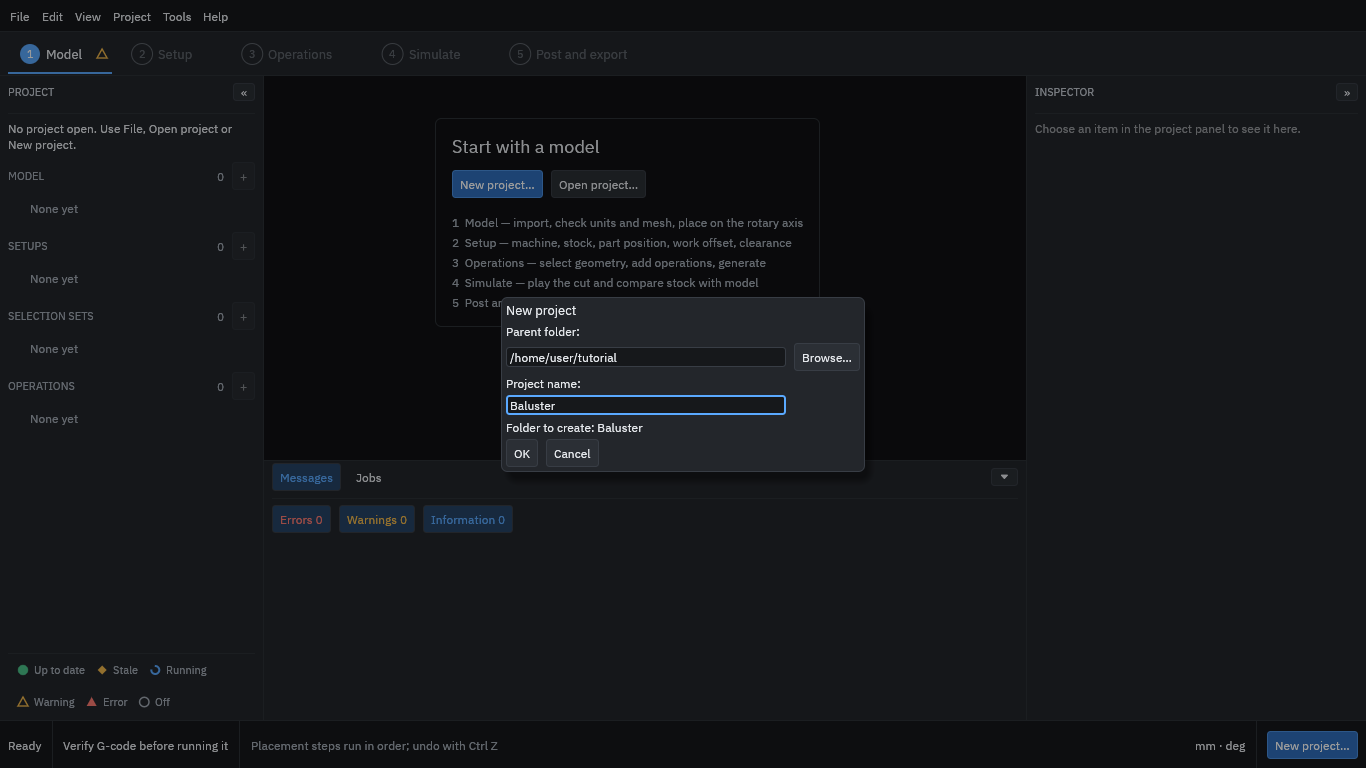
The program creates the folder and opens the empty project.
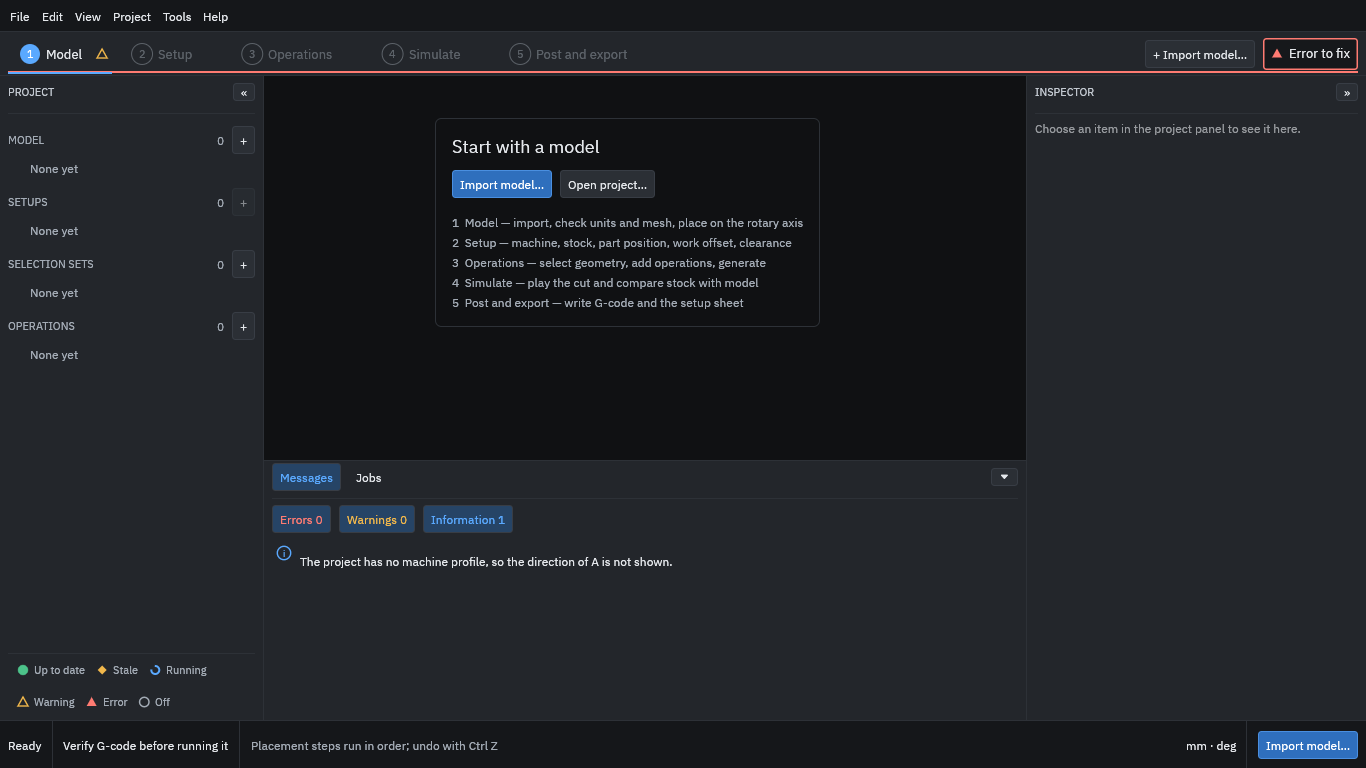
The row of steps along the top is the order you work in. The marks beside each step show whether it is ready. At this point the program notes that the project has no machine yet; you add one in step 3.
The program does not save by itself: use File > Save (Ctrl+S) as you go. Edits in a form are applied when you press Enter or leave the field.
2. Import the model
- Choose Import model….
- Type the path of
baluster.stl(or use Browse…). - Press Check and preview.
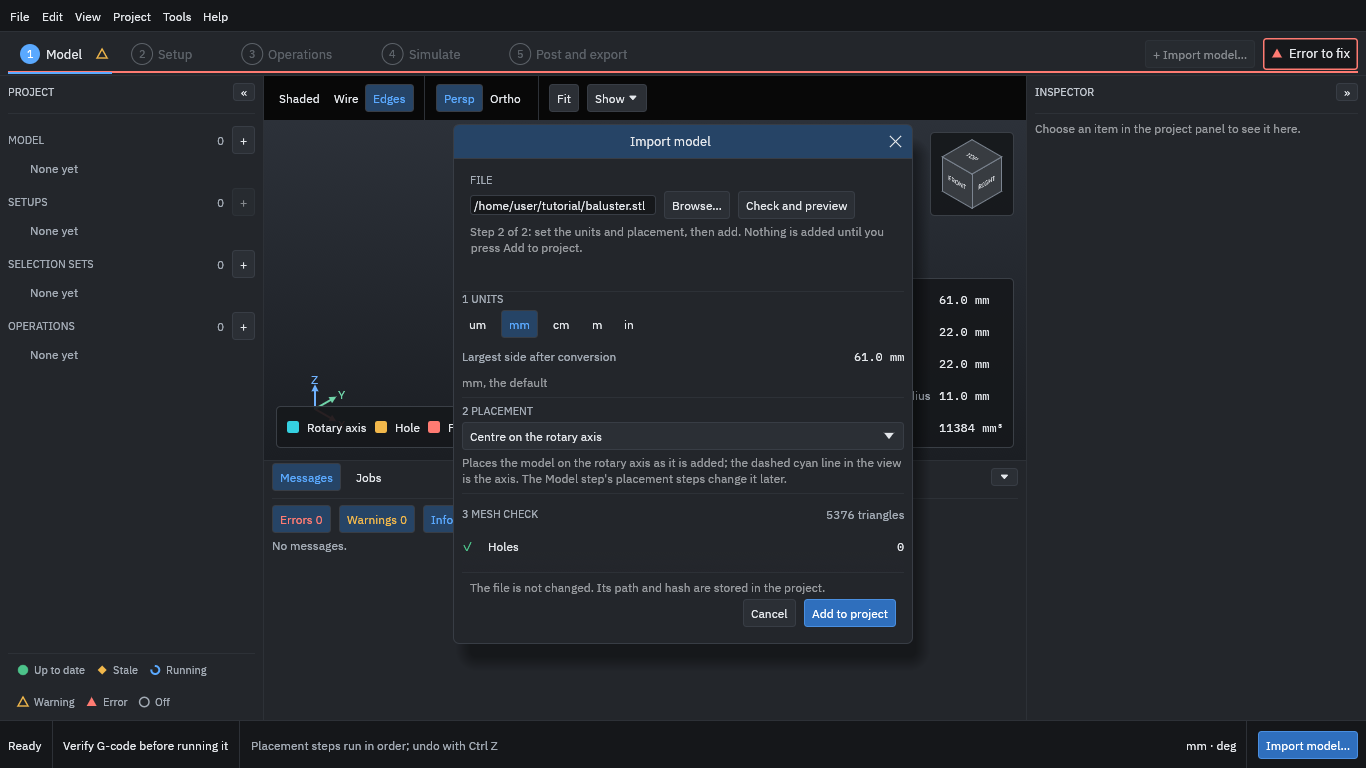
The dialog shows what the file holds before anything enters the project:
- Units
- An STL file does not say what its numbers mean, so the program reads them as millimetres unless you choose another unit. The piece is 61 mm long and 22 mm across.
- Placement
- “Centre on the rotary axis” puts the model’s centre line on the A axis. The piece was made along X, so it needs nothing else.
- Mesh check
- The program looks for holes, flipped faces and other faults. This model has none.
Then:
- Press Add to project.
- Press Continue to setup at the bottom right.
3. Choose the machine
The Setup step describes the machine, the stock and how the work is held.
- Press Add setup.
- In the Inspector (the panel on the right), under Machine, choose Makera Z1.
- Press Use this machine.
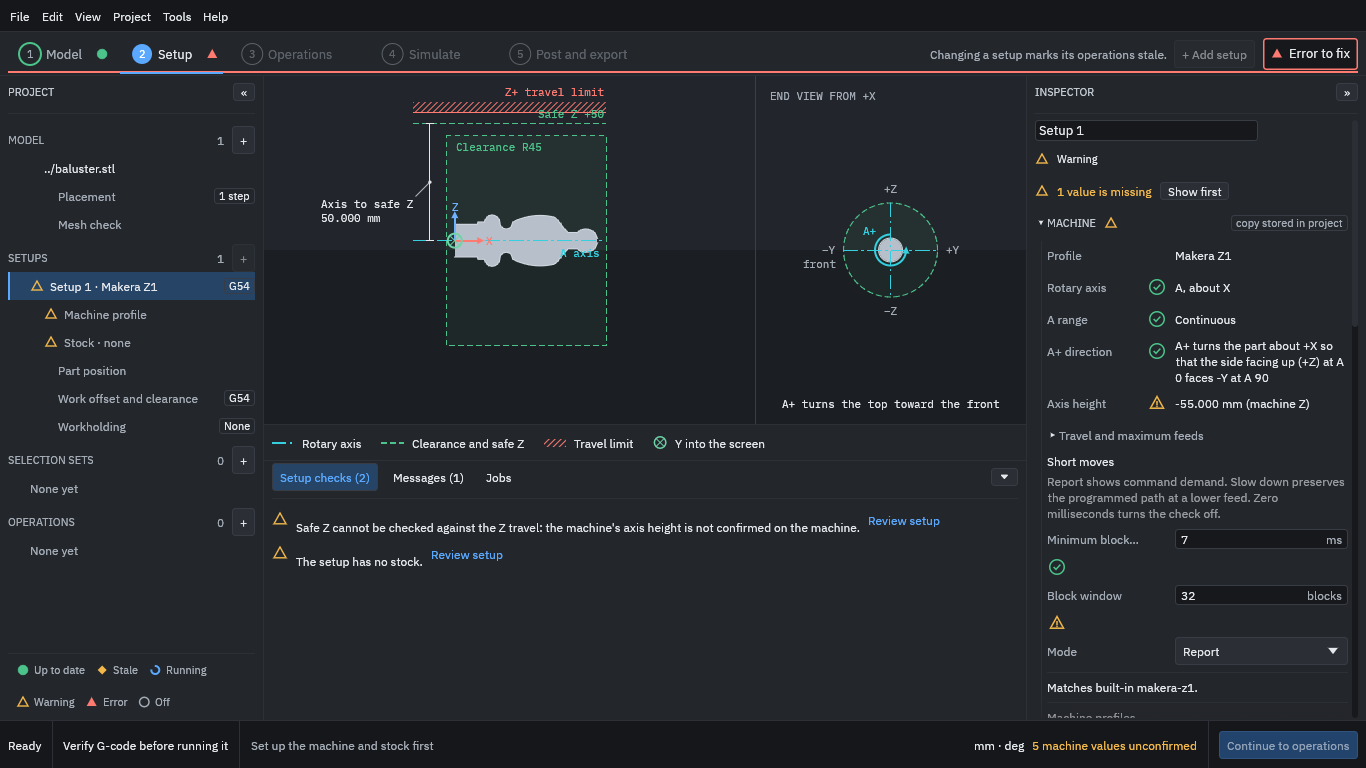
The view on the left of the window now shows the part on the A axis with the safe height and travel limit; the end view shows which way positive A turns. The Inspector shows the machine profile’s rotary axis (A, about X), its range and direction.
Warning
Notice “5 machine values unconfirmed” at the bottom right. The built-in Z1 profile includes values nobody has confirmed on your machine, such as the height of the axis above the bed. They are the values the program uses to check that moves stay in range, so measure them on your machine and correct the profile before you trust a check that depends on them.
4. Set up the stock
- In the project tree on the left, choose Stock under Setup 1 (or scroll the Inspector to Stock).
- Choose the Cylinder shape. The program fills in a diameter and length that surround the part with a small allowance: a 24 mm diameter, 63 mm long bar starting 1 mm before the part. Leave them.
- Under Material, pick Hardwood.
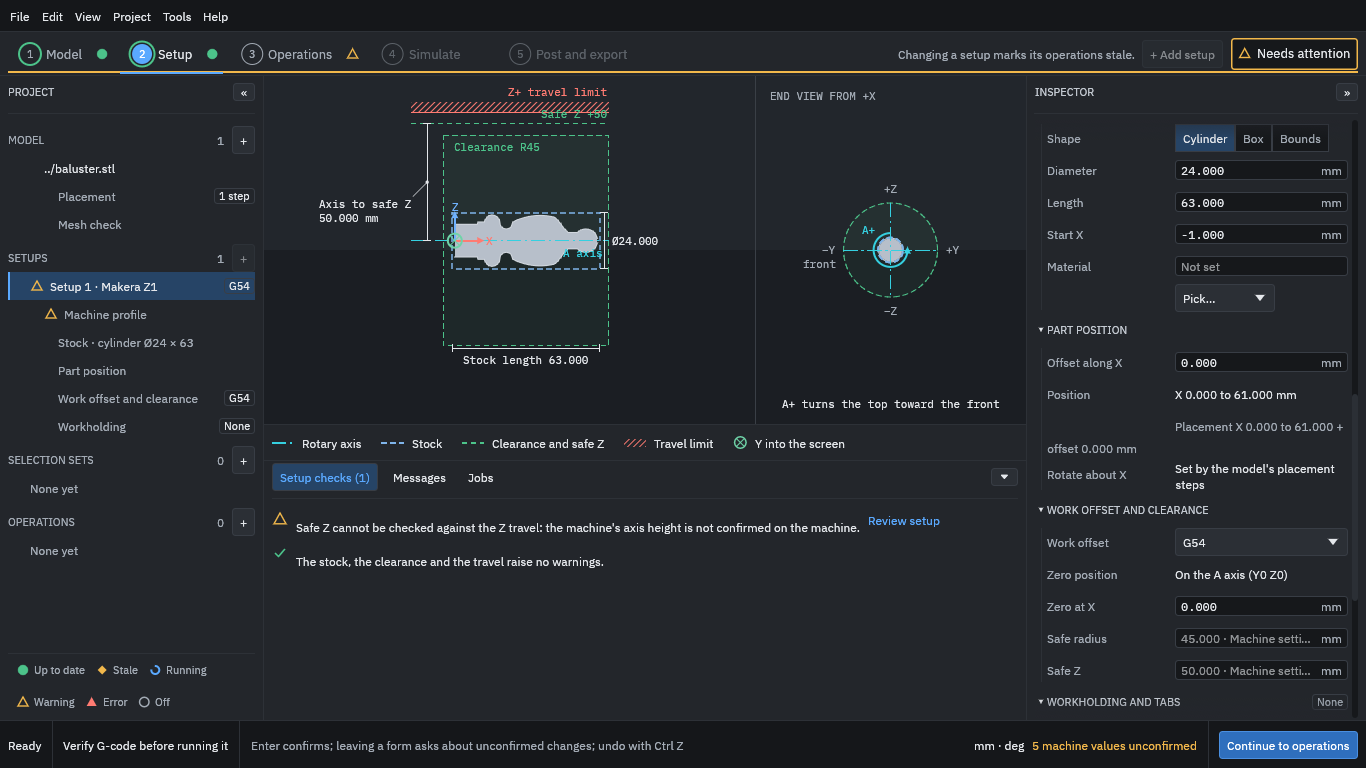
The stock appears as the dashed outline around the part. The material choice matters because the tool library has cutting data for each material, which the operations use later. Stock and the held region says more about the stock.
5. Hold the work
- Under Workholding and tabs, tick Held at the start.
- Set Grip length to 8 (millimetres).
- Press Apply at the bottom of the section.
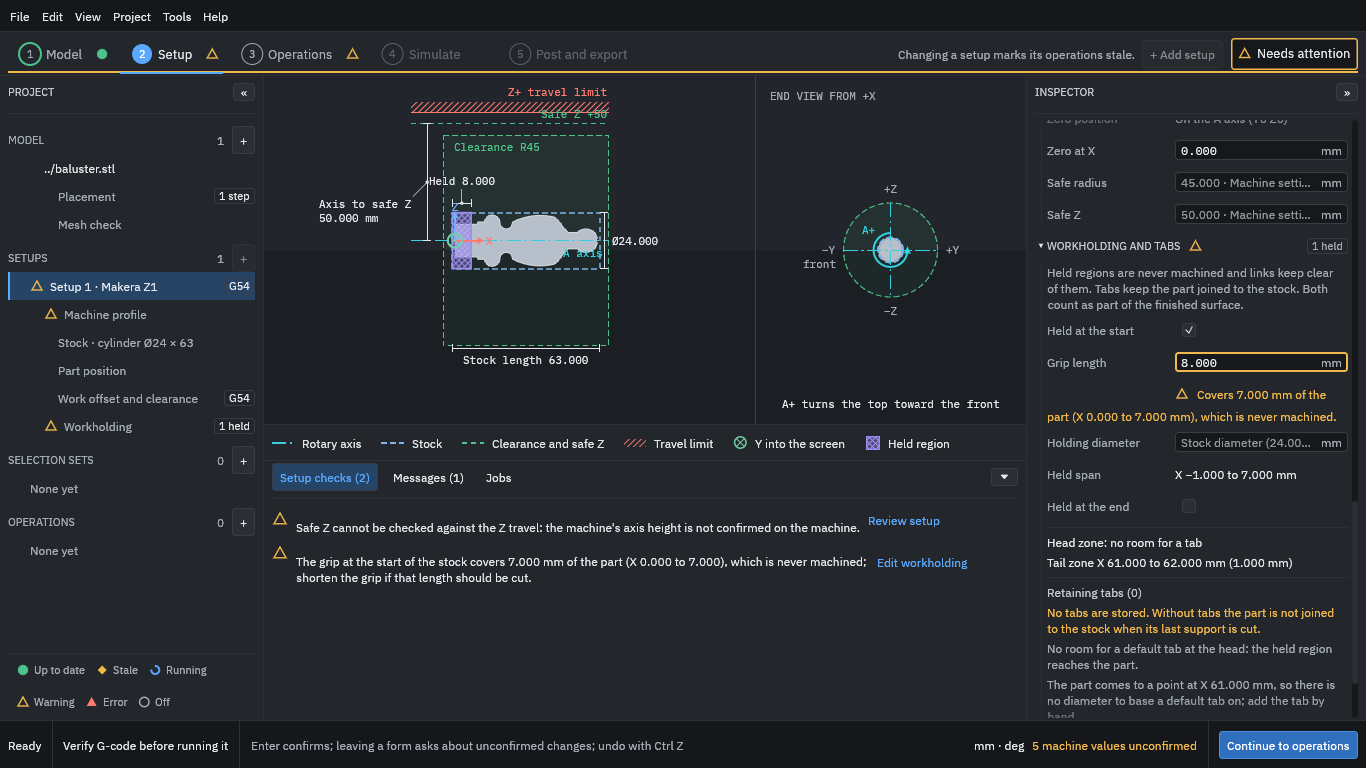
The first 8 mm of the stock, from X = -1 to X = 7, is now a held region: it is where the chuck grips. It is never cut and the paths keep clear of it. The program warns that this length covers 7 mm of the part (the plain end), which therefore stays as bar. That is what you want here; the warning would matter if you had held part of the shape you meant to cut.
The program also reminds you that, without tabs, the part is not joined to the stock when its last support is cut. This piece stays joined to the held bar, so this tutorial uses no tab; add tabs if your own job cuts the part free. A tab is a small bridge left uncut so that a part stays attached until you separate it yourself.
If you also support the far end of the stock, tick Held at the end the same way. The program treats the tailstock end as a held length only, so keep your own track of clearances there.
Press Continue to operations.
6. Choose the tools
- Choose Tool library…. This lists the tools you can use: 54 ready-made Makera Z1 tools and some standard ones.
- Type
3.175in the search box to see the 3.175 mm tools. - Select Z1 O-flute 3.175x25.
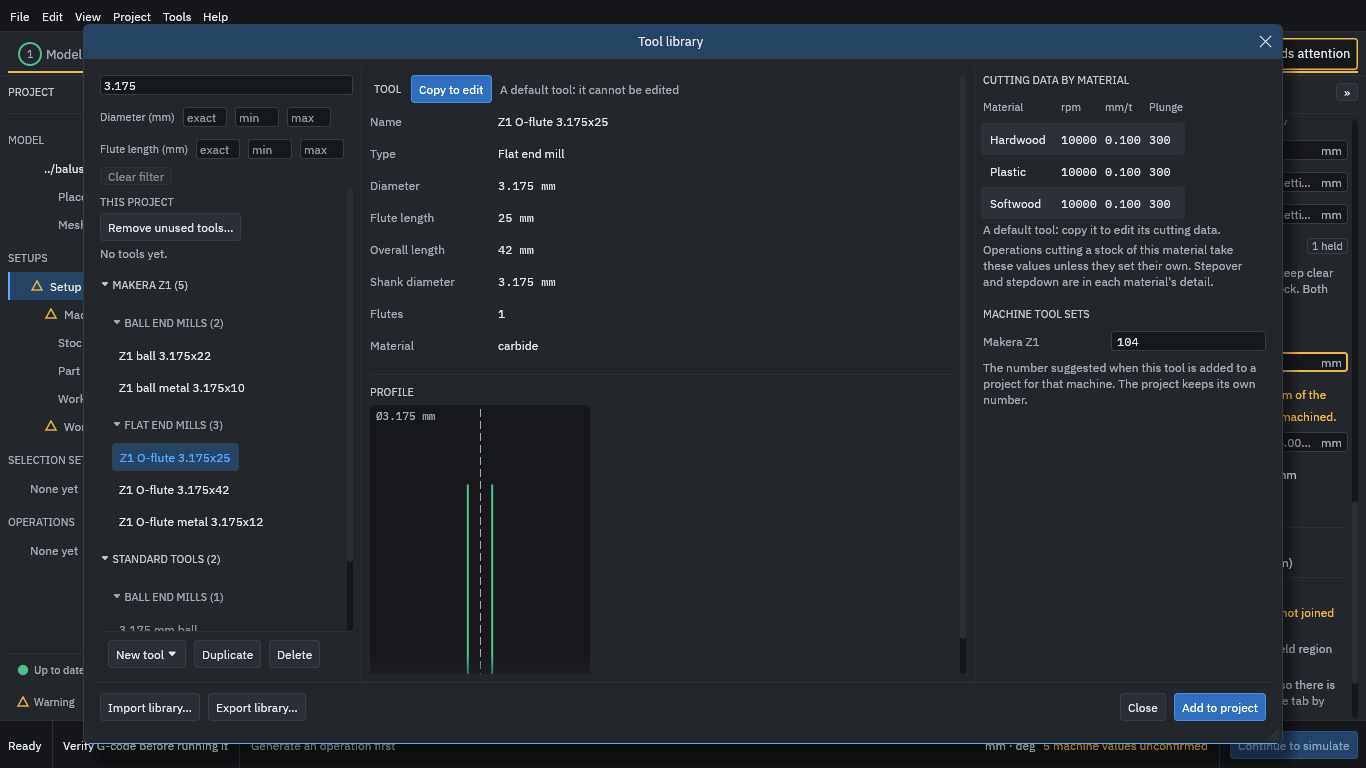
On the right is the tool’s cutting data by material: a spindle speed, a feed per tooth and a plunge feed for each. For Hardwood this tool has 10,000 rpm and 0.100 mm per tooth.
Warning
These are example numbers from the default library; they are not proven cutting data. A default tool cannot be edited, but you can copy it and change the copy.
Then add both tools to the project:
- Press Add to project.
- Select Z1 ball 3.175x22.
- Press Add to project again.
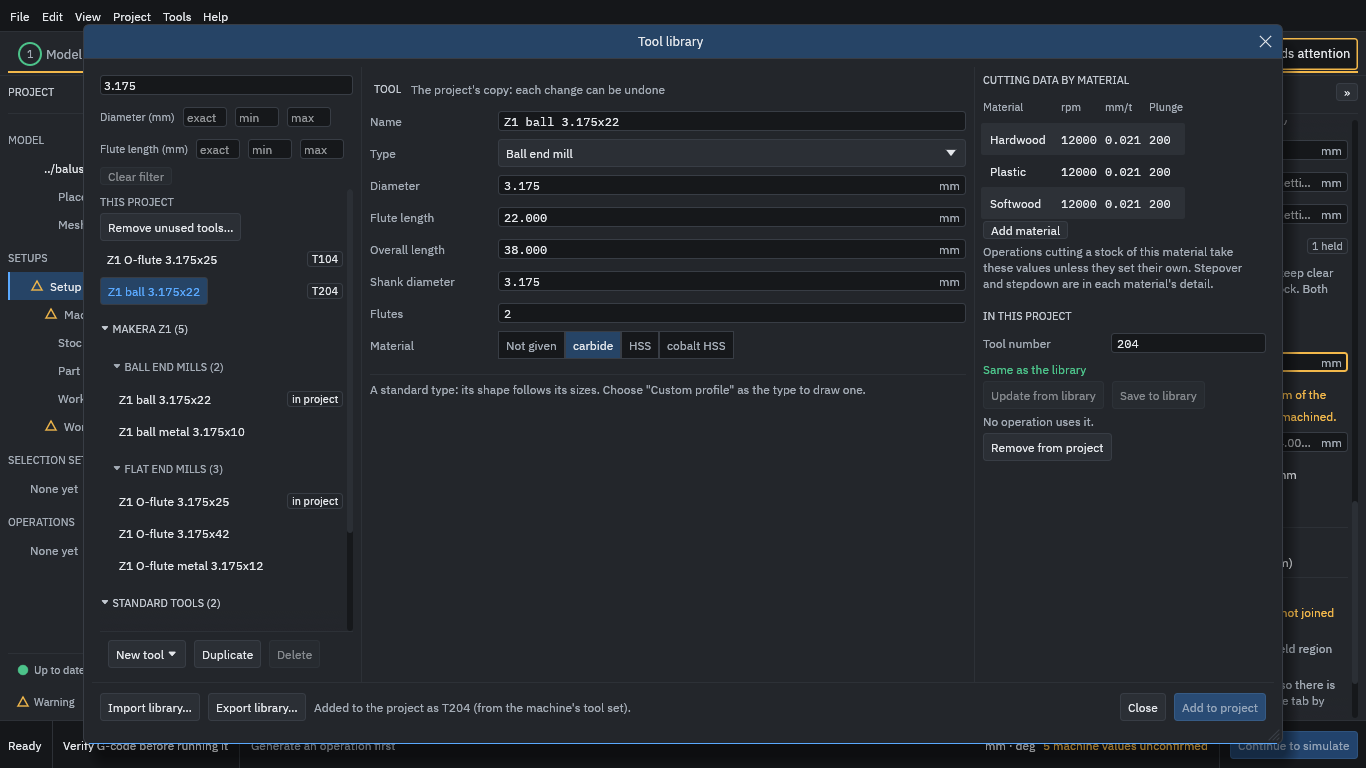
The project now holds two tools, numbered T104 and T204 (the numbers the Makera Z1 tool set suggests). Press Close.
7. Add the operations
An operation is one machining job with one tool. You will add two: a roughing operation that removes most of the material quickly, and a finishing operation that cuts the final surface. Roughing and finishing explains why there are two.
Choose + New operation. The list of strategies shows what the program can do:
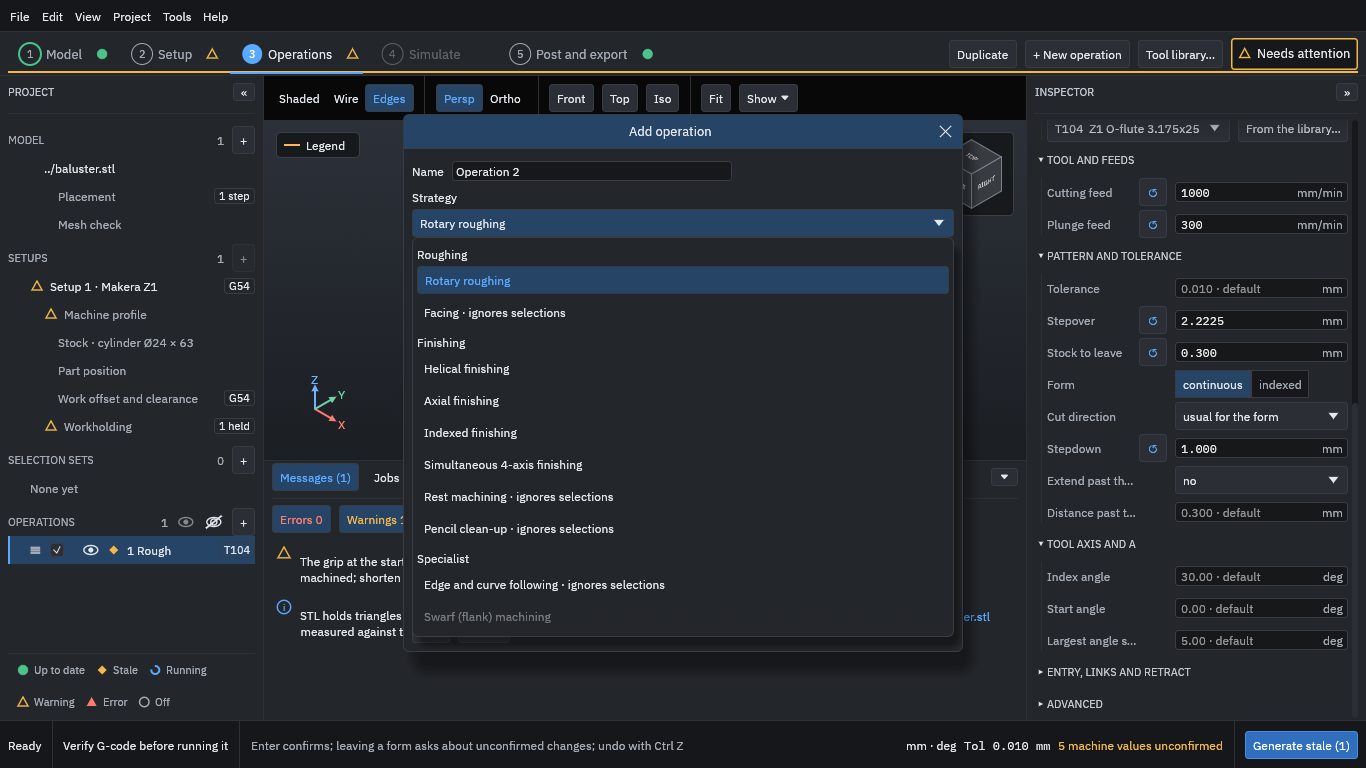
Each entry has a one-paragraph description. Swarf is greyed because it needs a STEP model.
Roughing
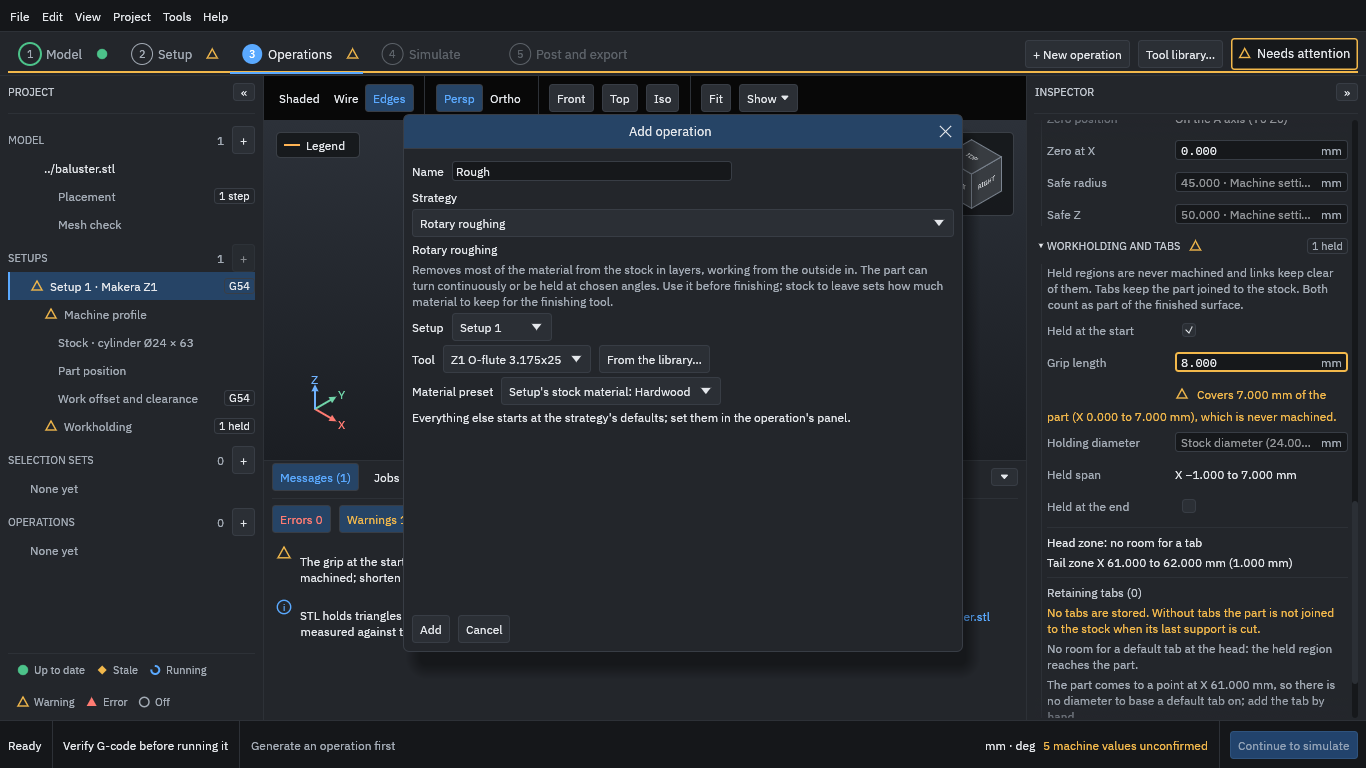
- Name the operation Rough and keep Rotary roughing as the strategy. The setup (Setup 1), the tool (Z1 O-flute 3.175x25) and the material preset (the setup’s Hardwood) are already right.
- Press Add.
- In the Inspector, set Stepdown to 1 mm. This field starts empty (“required”): the program will not guess how deep a layer should be.
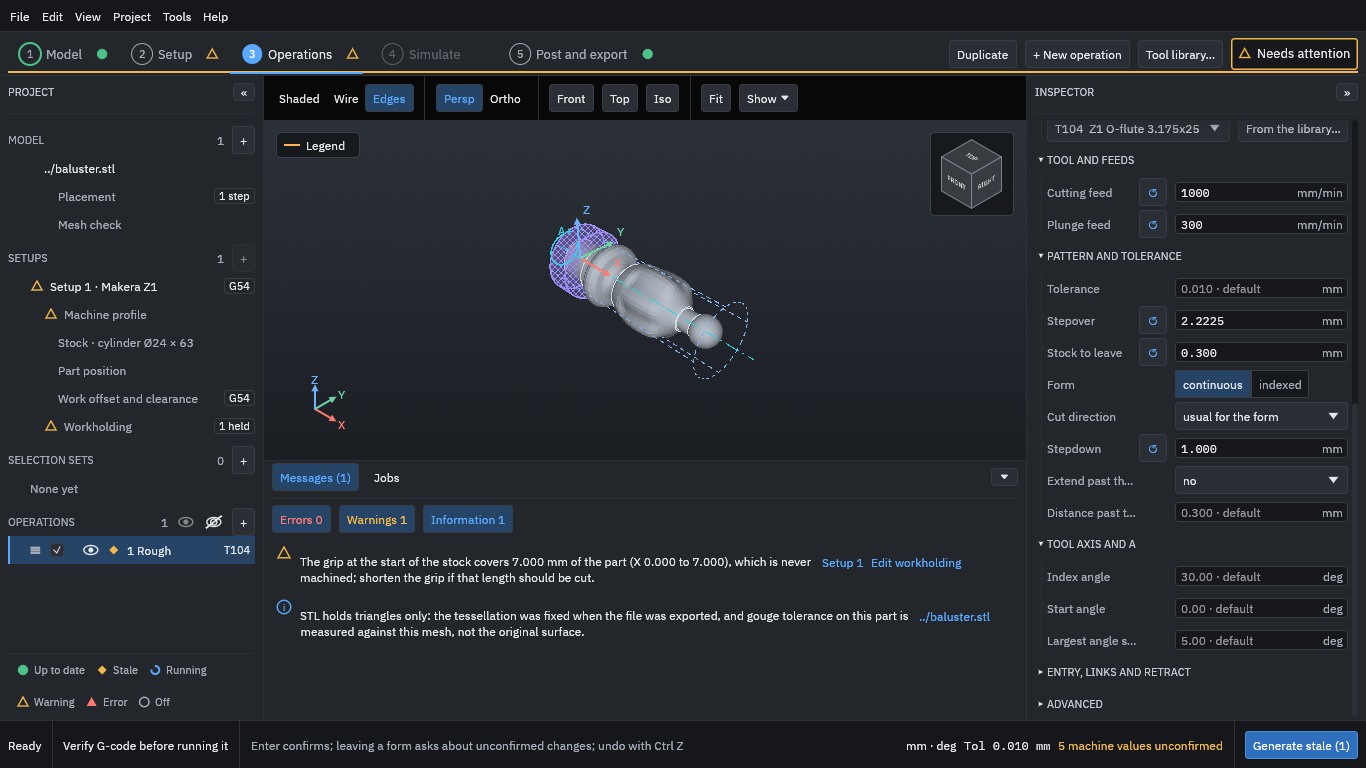
The rest comes from the tool and the strategy. Two to look at:
- Stepover 2.2225 mm is 70 % of the tool’s diameter, from the tool’s cutting data.
- Stock to leave 0.300 mm: roughing stops 0.3 mm short of the part so that the finishing tool has a little to cut.
The cutting feed shown is the programmed feed; the machine profile’s own feed limits can slow moves that turn A (the export dialog in step 10 reports the effective feed). Stepover, stepdown, scallop and stock to leave says more about these settings.
Finishing
- Choose + New operation again.
- Choose Helical finishing, name it Finish and pick the tool Z1 ball 3.175x22.
- Press Add.
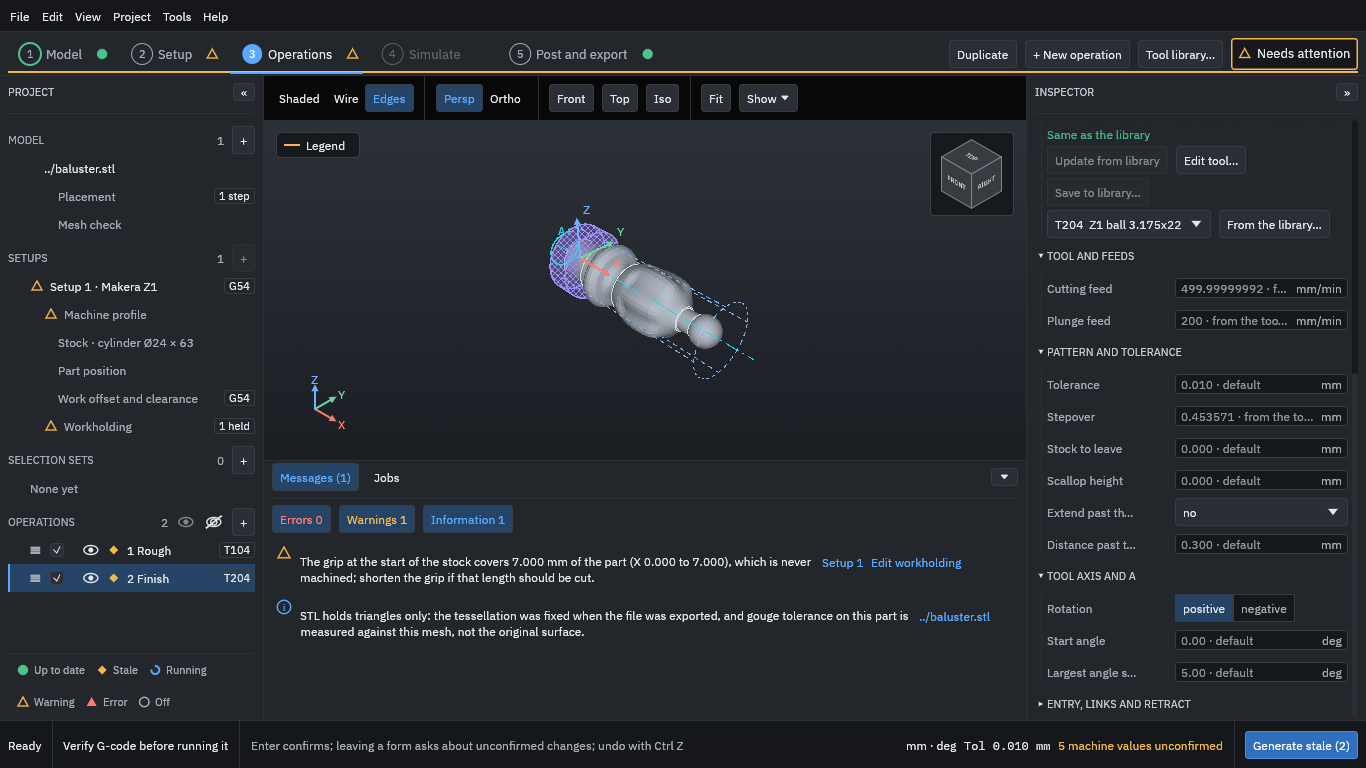
Helical finishing follows the surface in a spiral around the part as the tool moves along it. Its stock to leave is 0, so it cuts to the model. The description warns that “the tool may not reach tight inside corners”: a ball of this size cannot cut a sharper corner than its own radius.
8. Generate the toolpaths
- Press Generate stale (2) at the bottom right. “Stale” means the operation has no up-to-date toolpath.
- Wait until both operations show a green dot in the project tree: they are then up to date.
The status bar shows the progress. On a small part this takes about a minute without a graphics card, and less with one.
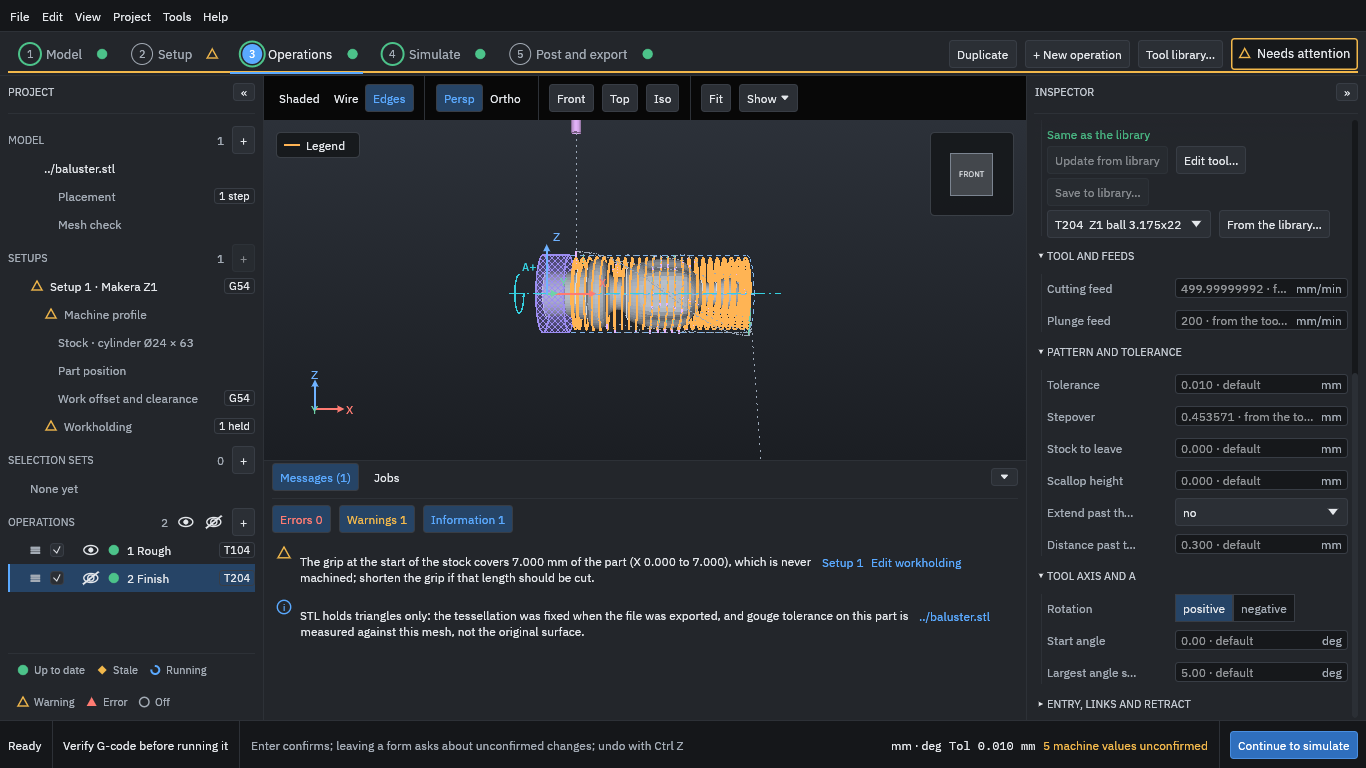
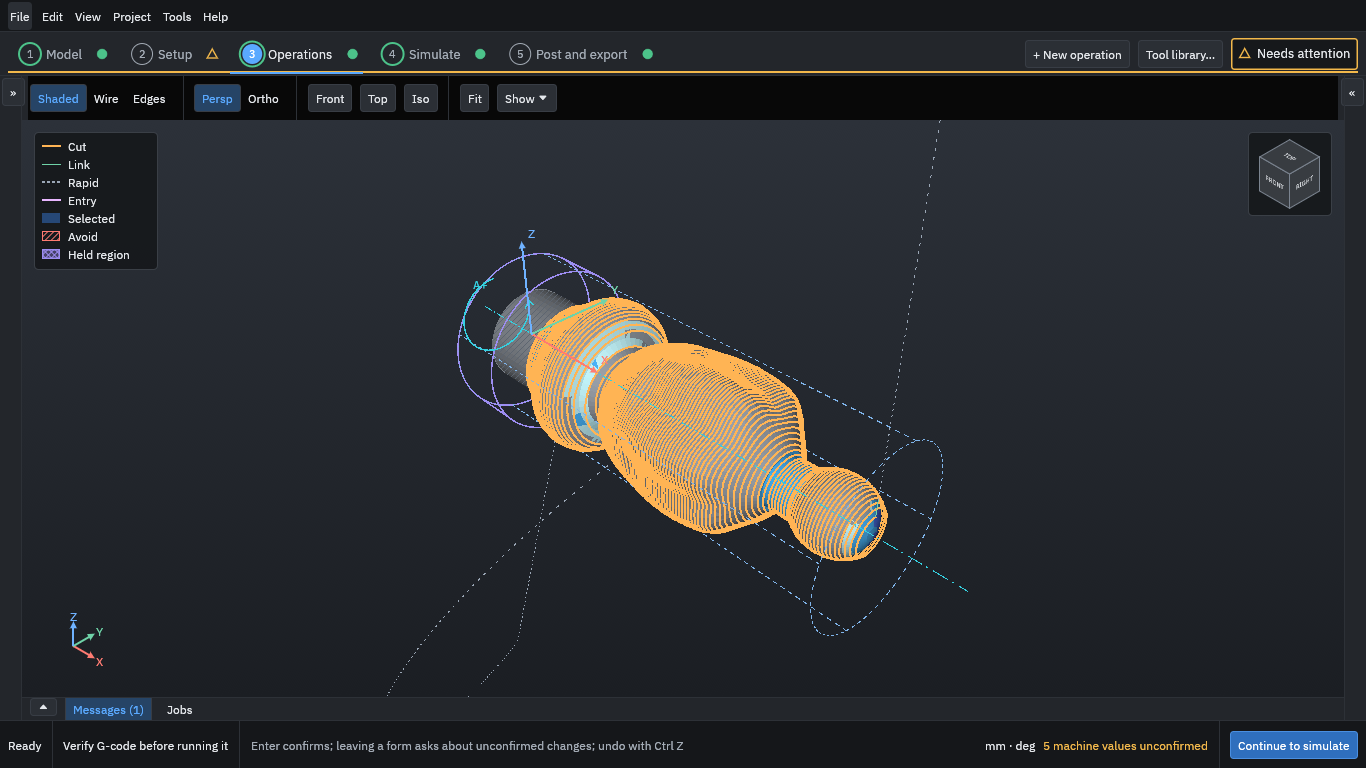
The orange lines are the roughing toolpath in the front view, with the held region hatched on the left. The eye icon beside an operation shows or hides its path in the view; hiding a path changes only the view, never what is machined. Use the view buttons (Front, Top, Iso, Fit) and the mouse to look around.
Press Continue to simulate.
9. Simulate and read the results
The Simulate step plays the whole program back as a cut and compares the result with the model. The program first prepares the cut part, which takes a little longer than generating. Simulation and deviation colours says more about the simulation.
- Press Show, and set Cut part display to Solid if you want a solid view.
- Use the playback controls under the view. The buttons go to the start, step back one move (Left), play or pause (Space), step on one move (Right), and go to the next operation (Shift+Right). Speed sets how fast it plays.
- Jump to the start of the Finish operation to see the stock after roughing.
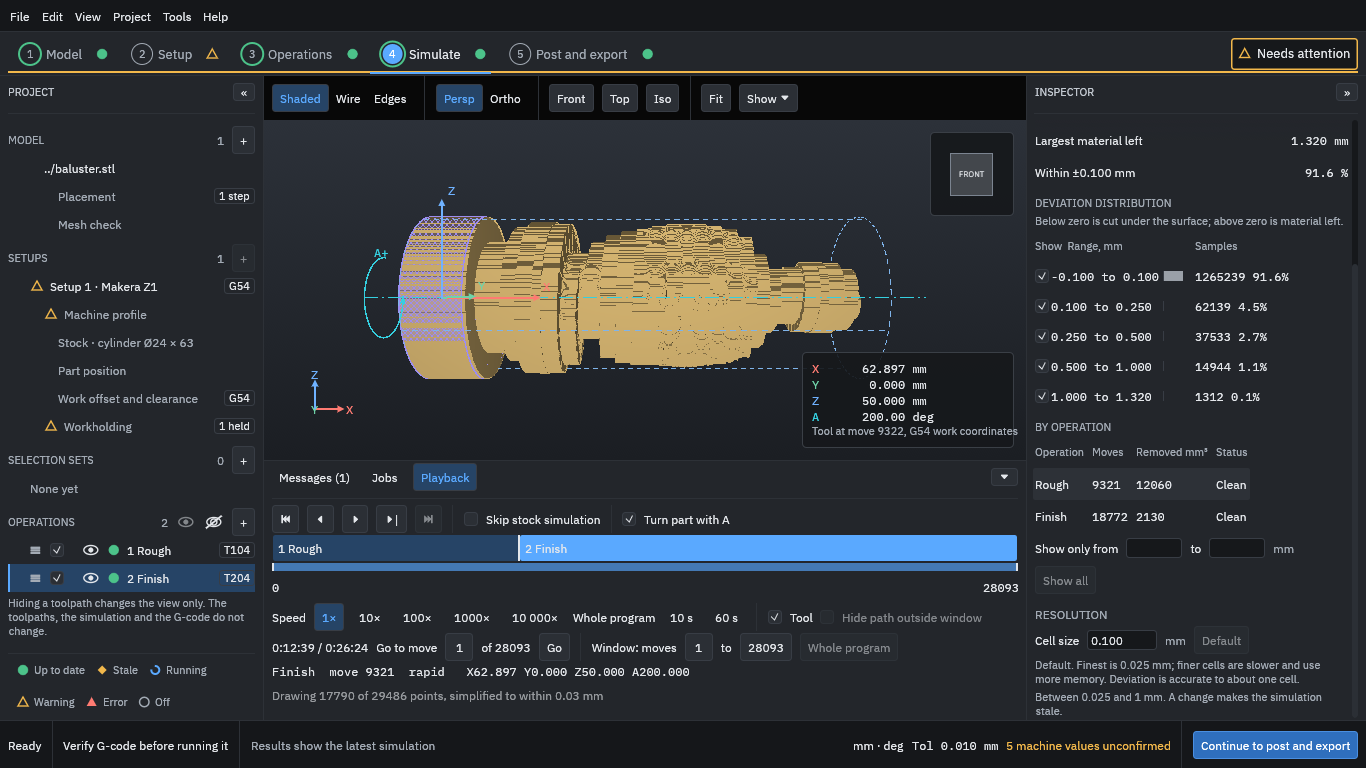
- Play on to the end of the program.
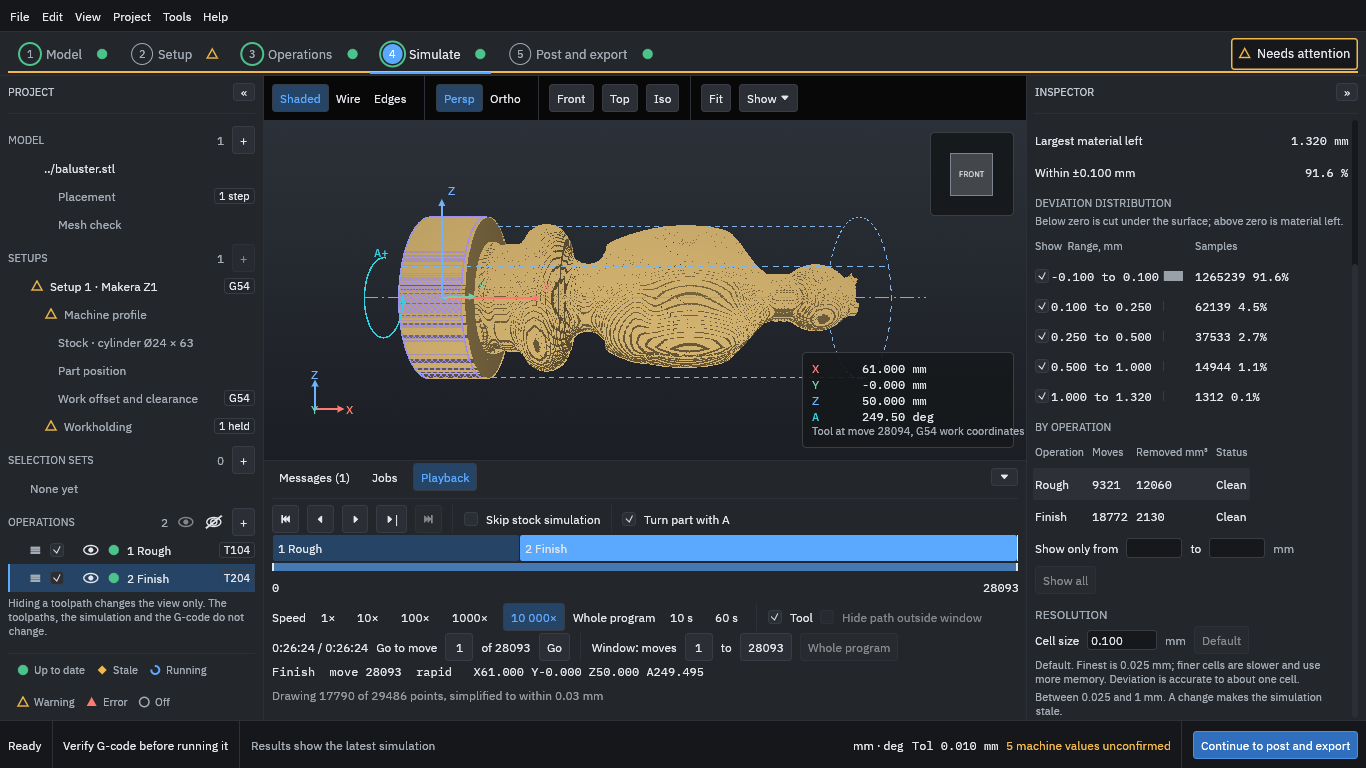
The results on the right say how closely the cut matches the model:
- Largest material left (1.320 mm for this run) and Within ±0.100 mm (91.6 % of the sampled points). The rest is material the finishing tool left. Tick Deviation colours at the top of the Inspector to colour the cut part by how far each point is from the model (grey is on the surface, blue still has material left) and see where it is.
- The deviation distribution counts samples in each band of material left; below zero would mean cut under the surface.
- By operation: how many moves each makes and the volume it removes.
- Cell size 0.100 mm is the simulation’s resolution. The stepped surface in the view is that cell size; it is not the finish the machine would leave. A finer cell is more accurate and slower.
Warning
Treat the simulation as a check on the toolpaths, not a guarantee. It does not model the chuck, the holder or the machine, and it cannot show whether your tool, speed and feed will cut well.
The Playback panel also shows the programmed time: about 26 minutes 24 seconds here. This is the sum of the moves at their programmed feeds. It is not an estimate of the machine’s time.
10. Post and export the G-code and the setup sheet
- Press Continue to post and export, then Post and export… (in the current program, the Post and export… button on the Simulate step; see the note on the first page). The dialog opens.
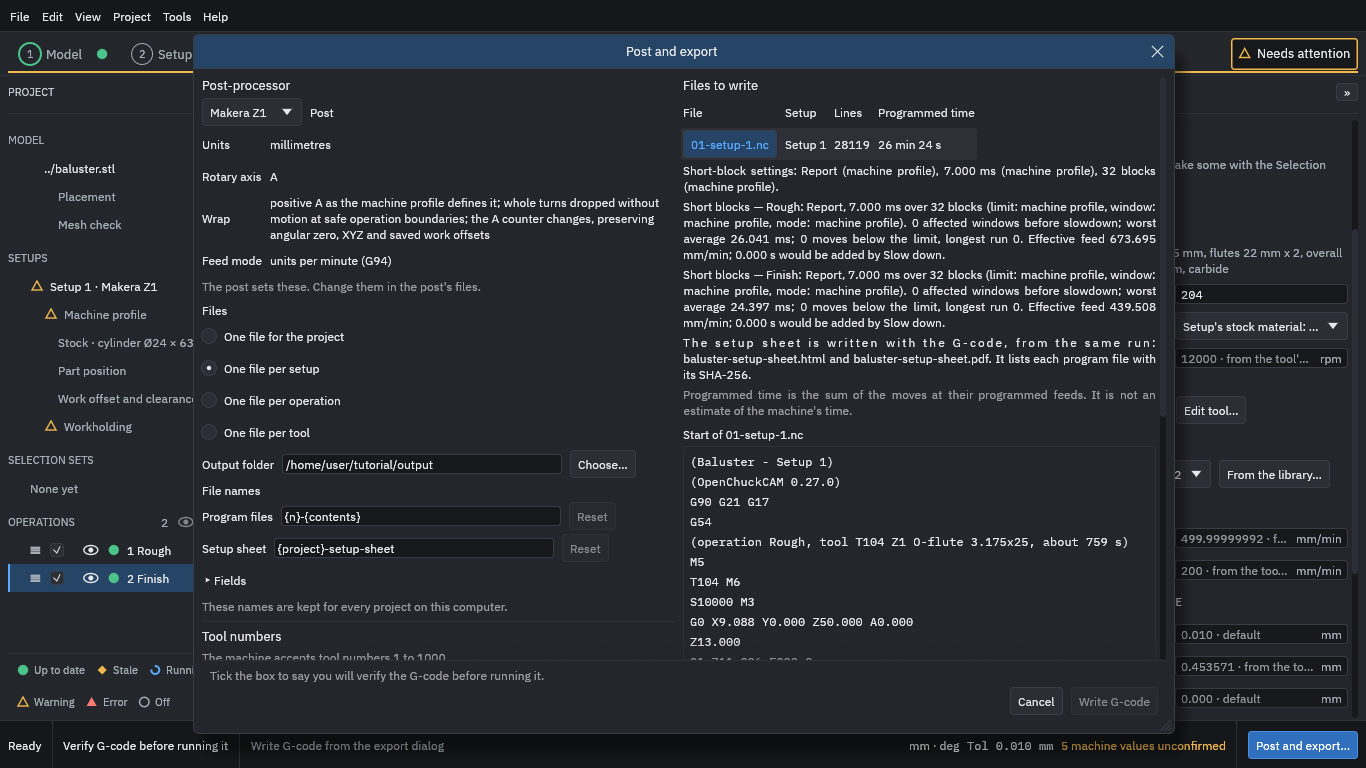
The dialog shows:
- Post-processor
- Makera Z1 writes G-code for that machine (units in millimetres, A as the rotary axis, feed in units per minute). A LinuxCNC post is also available; it is used to check the output in a simulator.
- Files
- One file for the project, per setup, per operation or per tool. Keep One file per setup here.
- Output folder
- Where the files go. Type a folder.
- File names
- The names are made from templates (
{n}-{contents}gives01-setup-1.nc). The defaults are fine. - Files to write
- The list shows the file’s lines (here 28,119) and programmed time, and the start of the program so you can read it.
- Scroll down to Checks before writing.
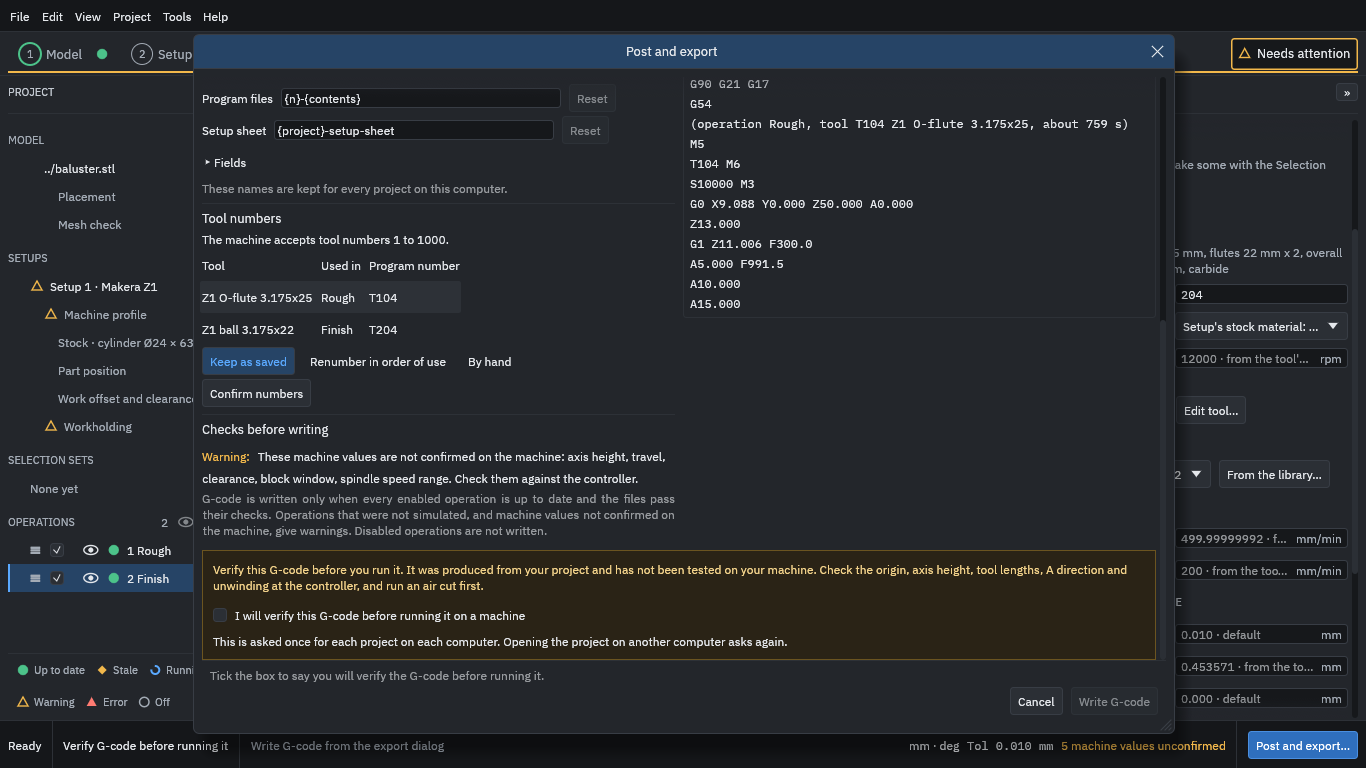
- Read the warning about the unconfirmed machine values, and the notice “Verify this G-code before you run it.”
- Tick I will verify this G-code before running it on a machine (the program asks this once per project on each computer).
- Press Write G-code.
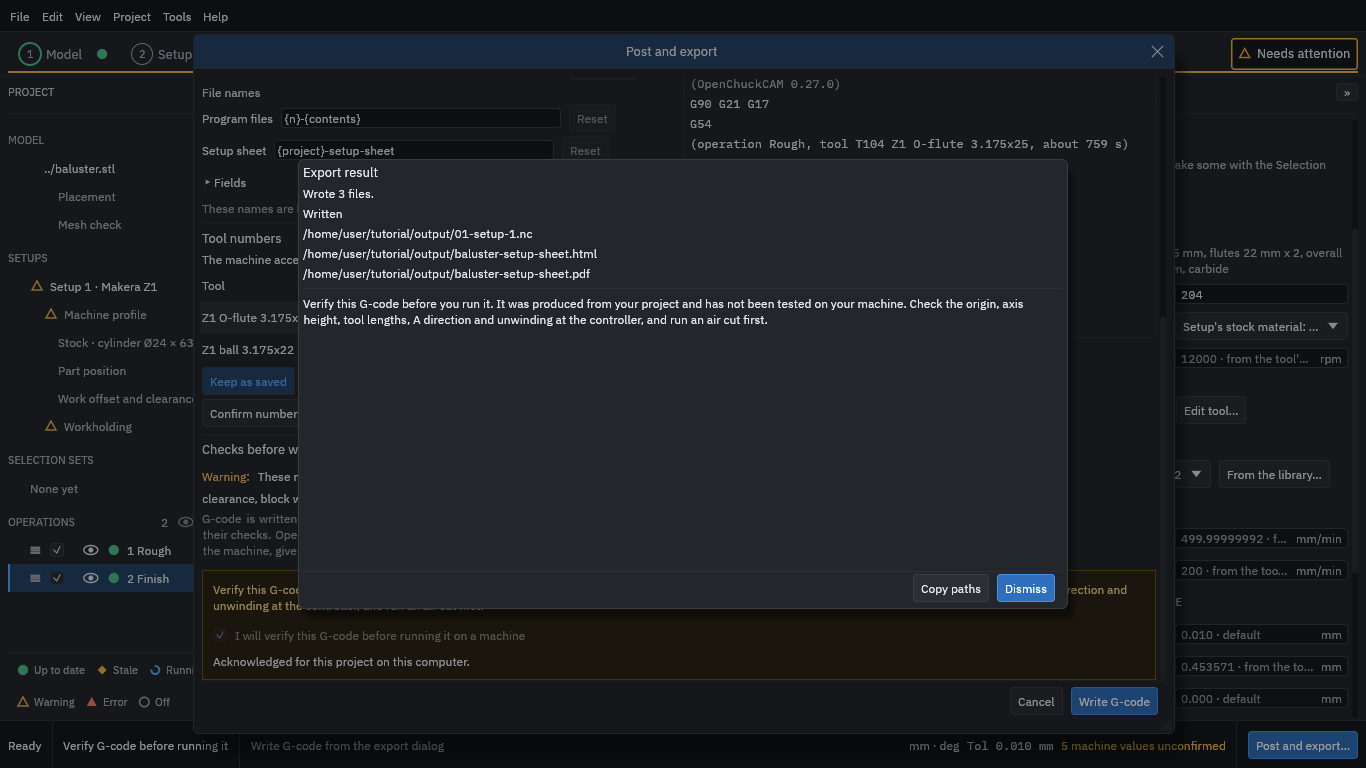
Three files are written to the output folder:
01-setup-1.nc: the G-code (about 800 KB for this job).baluster-setup-sheet.htmlandbaluster-setup-sheet.pdf: the setup sheet. It lists the project, machine, stock, held length, tools, operations with their speeds and times, each program file with its SHA-256 hash, and the notice to verify. Compare the hash of a file on the machine with the sheet to be sure it is the file the sheet describes.
Dismiss the result and save the project with File > Save.
Before you run anything: verify the G-code
This is the part that matters most. The example job is not a tested machining recipe. The tools, speeds, feeds, stock and the hold in this tutorial have never been cut on a machine. Even for your own jobs, the program cannot know your machine, your fixture or your tool.
Before any program runs on a machine:
- Read the program from the first line to the last, or at least up to the first cut and the end. The header names the project, the setup and the software version. Check the units, the tool numbers and the safe Z.
- Check the machine values. The axis height, travel and clearance in the profile must be what you measured on your machine, not the built-in assumptions. Set the work offset (G54) on the A axis centre line, at the X your setup says.
- Check the direction of A and what the controller does at the unwinding between operations.
- Run an air cut first: no tool and no material, at reduced feed, attended, with a hand on the stop, watching the first moves. Stop at anything unexpected.
- Only then consider cutting, with a tool and material you have chosen for your machine, attended, starting with a trial in cheap material.
For the Makera Z1 the project keeps a safe-practice checklist and an air-cut procedure. They are the project’s own starting points, written for its owner’s machine. Checking G-code before you run it says more.
Warning
The generated G-code is yours to verify. OpenChuckCAM does not guarantee that a program is safe or correct for any machine, tool or setup.
What next
- Open the finished project (File > Open project) in
testdata/examples/baluster/baluster-projectand change something: try Indexed finishing or a smaller stepover and see the result in the simulation. - Read the known limitations before relying on any strategy.
- If something is wrong or unclear, please open an issue.
How 4-axis rotary machining works
A CNC milling machine moves a spinning cutter along straight axes: X (left and right), Y (front and back) and Z (up and down). A 4-axis rotary machine adds a fourth axis that turns the work. This page explains what that changes, and the words OpenChuckCAM uses for it.
The rotary axis
On a rotary machine the work is held at one end in a chuck, a clamp with jaws that closes around the stock, and the chuck can turn. The line it turns about is the rotary axis. Turning it is a move of the fourth axis, called A when it turns about X.
On the Makera Z1 the rotary axis lies along X. The cutter moves along the length of the work (X), across it (Y) and towards or away from it (Z), while A turns the work. Because the work turns, the cutter can reach all the way round it from above. That is what makes round and carved pieces possible: legs, finials, handles, blades and bladed disks.
Which way A turns
Every rotary machine has a positive direction for A, and a program cut with the wrong direction carves a mirror image. The machine profile records it. On the Makera Z1, a positive A move turns the top of the chuck towards the front of the machine. Check it on your own machine during the air cut.
Moving the axes together
The program can move the axes in two ways:
- Indexed: A turns to an angle and stops, then the cutter works on that side with X, Y and Z alone, like a 3-axis machine looking at one face.
- Simultaneous: A turns while the cutter moves, so the cutter follows the surface as the work goes round. This is true 4-axis machining, and it is what OpenChuckCAM is built for.
Different strategies use one or the other; Helical, axial, indexed and simultaneous finishing compares them.
What the program works out
From your model, the stock, the machine and the tools, OpenChuckCAM works out the toolpath: every position of the cutter and every angle of A. A post-processor then writes the toolpath as G-code, the text program your machine’s controller reads. You check that program before you run it: see Checking G-code before you run it.
Stock and the held region
Stock
The stock is the material you start with: on a rotary machine, usually a round bar or a square block. The program cuts the part out of the stock, so it needs to know the stock’s shape, size and position along the axis. With that it knows where material is, where the cutter can move fast through air, and how much each pass removes.
In the program’s Setup step you choose the stock’s shape:
| Shape | Use it for |
|---|---|
| Cylinder | A round bar. You give its diameter and length. |
| Box | A square or rectangular block. |
| Bounding box | A box that just surrounds the part, with an allowance you set. |
The program can fill in a size that surrounds the part with a small allowance. Measure your real stock and enter its true size: if the real stock is larger than the project’s, the first passes cut more than the program planned.
You also choose the stock’s material. The tool library holds cutting data for each material, which the operations use for their speeds and feeds.
The held region
The chuck grips a length at one end of the stock. That length must never be cut, and no toolpath may go there. In OpenChuckCAM it is the held region: you tick Held at the start and set the Grip length, the length the jaws cover.
If you also support the far end, for example with a tailstock, tick Held at the end in the same way.
Warning
A held region is a length along the axis, not a solid body. OpenChuckCAM does not model the chuck, its jaws or a tailstock, and does not check them against the tool or the holder. Check these clearances yourself, on the machine, before you run a program.
When the part comes free
When the last material joining the part to the held stock is cut, the part comes free and can fall or be caught by the cutter. If your job cuts the part free, leave tabs: small bridges of material, cut through by hand afterwards. Many turned parts never come free, because one end stays joined to the held bar; the program warns you when it cannot tell.
Roughing and finishing
Most jobs are cut in two stages, with different tools and different aims.
Roughing
Roughing removes most of the material quickly. It uses a larger, stronger tool and cuts in layers: each layer goes one stepdown deeper into the stock. Roughing leaves a little material on the part on purpose, the stock to leave, so the cutter never touches the final surface while it is cutting hard.
OpenChuckCAM’s rotary roughing turns the work as it cuts each layer, so the layers wrap round the part instead of being flat.
Finishing
Finishing cuts the final surface. It uses a smaller tool, often with a round end (a ball end mill), and follows the surface of the model closely, taking off only what roughing left. The distance between neighbouring passes, the stepover, decides how smooth the surface is and how long the cut takes.
OpenChuckCAM has several finishing strategies, which move the cutter round the part in different patterns: see Helical, axial, indexed and simultaneous finishing.
Cleaning up
Some places are too tight for the finishing tool, such as inside corners. Two kinds of operation deal with them:
- Rest machining cuts only where an earlier, larger tool could not reach, with a smaller tool.
- Pencil clean-up runs a small tool along each crease, where two surfaces meet.
Operations and their order
Each stage is an operation in the program: one tool, one strategy and its settings. Operations run in the order they are listed. The simulation cuts them in that order too, so you can see what each one leaves for the next.
| Stage | Typical tool | Leaves |
|---|---|---|
| Roughing | A larger flat or bull-nose end mill | The stock to leave, as steps |
| Finishing | A smaller ball end mill | The final surface, with small ridges between passes |
| Rest or pencil | A smaller tool still | Corners and creases the others missed |
Stepover, stepdown, scallop and stock to leave
Four settings decide how much each pass cuts and how close the result comes to the model. They appear in almost every operation.
- Stepover
- How far the cutter moves sideways between neighbouring passes. A smaller stepover takes more passes, takes longer, and leaves a smoother surface.
- Stepdown
- How deep each roughing layer goes. A larger stepdown removes material faster and loads the tool more. It must stay within what the tool can cut: its flute length, its strength and the material.
- Scallop
- The small ridge a round-ended cutter leaves between two neighbouring passes. Its height depends on the tool’s radius and the stepover. Some finishing operations let you set the scallop height you will accept and work out the stepover from it.
- Stock to leave
- Material an operation leaves on the part on purpose, so that a later operation can finish it. Roughing leaves some; finishing leaves none.
How they work together
- Halving the stepover roughly doubles the number of finishing passes and the time, and makes the scallops much smaller.
- A larger ball (a larger tool radius) leaves smaller scallops at the same stepover, but cannot reach into tight curves.
- Roughing with stock to leave of a few tenths of a millimetre gives the finishing tool an even, light cut.
The program’s default tolerance, how far a toolpath may stray from the model, is 0.01 mm. You can change it in each operation.
Helical, axial, indexed and simultaneous finishing
This page is not written yet. It will cover how each finishing strategy moves the cutter round the part (in a spiral, along the axis, from fixed angles, or turning A while it cuts), what each is good at, and how to choose between them.
Roughing and finishing and How 4-axis rotary machining works cover the ideas they build on.
Tabs
This page is not written yet. It will cover what a tab is, when a part needs tabs to stay joined to the stock, how the program places them, and how to cut them away afterwards.
Stock and the held region explains when a part comes free.
Simulation and deviation colours
This page is not written yet. It will cover what the material removal simulation shows, what the deviation colours mean (material left, on the surface, cut too deep), what the cell size does, and what a simulation cannot show.
The simulation shows what the toolpath removes; it is not a check of the machine. See Checking G-code before you run it.
Import a STEP file
This page is not written yet. It will cover importing a STEP model, what the program keeps of its exact faces and edges, and which strategies need a STEP model (swarf and radial drilling).
Known limitations lists what has been tested.
Limit an operation to a region
This page is not written yet. It will cover selecting faces or areas of the part, saving them as a selection set, and limiting an operation to it or keeping it away from it.
Add a tool to the library
This page is not written yet. It will cover adding your own cutter to the tool library: its shape, sizes, holder and cutting data for each material.
Tool library will describe every field.
Confirm machine profile values
This page is not written yet. It will cover the machine profile values the program marks as unconfirmed, how to measure each one on your machine, and how to record it so the program shows it as confirmed.
Until it is written, the air cut says how to measure the height of the Makera Z1’s rotary axis, the value most checks depend on.
Export G-code and the setup sheet
This page is not written yet. It will cover posting and exporting the program from the Simulate step: choosing the post, the file names, splitting by tool, the checks run before the files are written, the preview of the program, and the setup sheet.
Whatever the export shows, the program is yours to check: see Checking G-code before you run it.
Checking G-code before you run it
Warning
Generated G-code must be verified by you before it is run on a machine. OpenChuckCAM does not guarantee that a program is safe or correct for any machine, tool or setup. A program that looks right in the simulation can still damage your machine, your tool or you.
The program knows only what you told it: the model, the stock, the machine profile and the tools. It does not know your actual machine, your fixture, the tool you fitted or how far it sticks out. This page lists what to check, in the order you meet it.
In the program
- Read every message the program shows in the Setup, Operations and Simulate steps. A warning there is often the first sign that a setting does not match your job.
- Check the machine values marked unconfirmed. The checks the program makes, such as whether a move stays inside the machine’s travel, are only as good as these values. See Confirm machine profile values.
- Watch the whole simulation. Look for cuts into the held region, passes that leave the part, and places where the deviation colours show the cutter going too deep.
The simulation shows what the toolpath removes from the stock. It does not model your chuck, a tailstock, the tool holder or the machine, so it cannot show a collision with any of them.
In the G-code file
Open the program in a text editor, or in the preview of the export dialog, and read it, at least to the first cut and the end.
| Check | What to look for |
|---|---|
| Header comment | The project, setup, post and software version you expect. |
| Units | Millimetres (G21). |
| Work offset | The work offset your machine is set up with (normally G54), with its zero where the program expects it: on the rotary axis, at the part’s X origin. |
| Tools | Each tool number is the tool you will fit, in the order you expect. |
| Safe height | The safe Z clears the chuck, the jaws and the rotary axis assembly along the whole length the program uses. |
| Speeds and feeds | Spindle speeds and feeds suit your tool and material, and stay within your machine’s limits. |
| A moves | The direction of A matches your machine. A program with A reversed carves a mirror image. |
| End of the program | The spindle stops, the cutter retracts, and A is unwound the way your controller expects. |
On the machine
- Run an air cut first: the program with no tool fitted and no material in the chuck, at reduced feed, with your hand near the stop. For the Makera Z1, follow Air cut on the Makera Z1.
- Make the first cut in soft, low-cost material such as wax, foam or tooling board.
- Stay at the machine for the whole run, and stop at any unexpected move, sound or alarm.
The safe-practice checklist puts all of this in one list to tick before each run.
Air cut on the Makera Z1
An air cut runs a program on the machine with no tool fitted and no material in the chuck, at reduced feed. Every move happens in the air, so you can watch the program and stop it before anything can be damaged. Run one for every new program, and again whenever you change the machine profile, the post or the setup.
Note
This page adapts the project’s own air-cut procedure,
docs/z1-air-cut-procedure.md, for any program you make. That document is the authority: where the two differ, follow it, and tell the project.
Warning
Stay at the machine for the whole run, with the emergency stop within reach of your hand. Any move you did not expect, any alarm or any line the controller rejects ends the air cut: stop, and do not go on to a cut.
Before you start
- Complete sections 1 and 2 of the safe-practice checklist.
- Note the controller’s firmware version. The project’s checks of the Makera Z1 were made on firmware 1.1.2; on another version, do not assume the machine behaves the same way.
- Measure the height of the rotary axis on your machine with Makera’s 4th-axis Z probing routine, and compare it with the value in the machine profile. If it differs, correct the profile and generate the program again: a wrong axis height moves every Z in the program.
- Set the work offset (G54) with Y0 and Z0 on the centre line of the rotary axis, and X0 at the part’s X origin, at least 10 mm clear of the jaws.
- Remove the tool from the spindle. Leave the chuck empty, or close the jaws on nothing.
- Clear the bed and close the enclosure.
- Put a piece of tape on one jaw, so you can see which way A turns.
Run it
- Open the program and read it: the header names the project, the setup and the software version; the units are millimetres; the safe Z suits the measured axis height.
- Set the feed override to 10 %.
- Start the program and watch the first 20 lines with your hand near the stop. A tool change line (
T1 M6) and a spindle start run as written, with no tool fitted. - Watch A. A positive A move turns the top of the chuck towards the front of the machine.
- Watch the end of the program. After the last cut the program unwinds A with
G92.4 A0 S0: the A reading changes, but A does not move. - If everything matched what you expected, you may run it again at a higher override, in steps (25 %, 50 %, 100 %).
Record it
Write down, for each run: the date, the firmware, the program file, the software version, the override, the axis height you measured, any alarm or rejected line, and whether the motion was what you expected. A photo of a filled-in sheet is enough. Keep the record with the program.
After the air cut
Make the first cut only when the air cut passed. Use soft, low-cost material such as wax, foam or tooling board, and follow section 3 of the safe-practice checklist.
Safe-practice checklist
Work through this list before and after every run on a Makera Z1. Stop at the first item you cannot tick.
Note
This page adapts the project’s checklist for its own machine trials,
docs/z1-safe-practice-checklist.md, which the project owner reviewed as the operator of a Z1. That document is the authority: where the two differ, follow it, and tell the project. Most items apply to any rotary machine, but the values given are for the Z1.
1. Before every session
- I know which program I am about to run, which version of OpenChuckCAM made it, and which post (Makera Z1, not the LinuxCNC post).
- I have read the program, at least every line up to the first cut and the end, and nothing in it surprises me.
- The header comment, the units (mm), the tool numbers and the safe Z match what I expect.
- The machine profile in the project matches the machine: travel, height of the rotary axis, direction of A. The axis height is the value I measured on this machine.
- I have noted the firmware version.
- I will stay beside the machine for the whole run.
- The emergency stop is within reach of my hand while the program runs.
- The enclosure is closed, and nothing is on the bed or in the machine that should not be.
- I know how to stop the machine (the stop button, feed hold) and what it does when I use each.
2. Air cut (no tool, no material)
- No tool is fitted and no material is held.
- The feed override is at or below 10 % for the first run of each program.
- G54 is set with Y0 and Z0 on the rotary axis, and X0 where the program expects it, clear of the jaws.
- I have checked by hand, at reduced feed or by jogging, that the safe Z clears the chuck, the jaws and the rotary axis assembly over the whole length the program uses, and that, with the longest tool the program uses, the spindle stays within the top of its Z travel at the safe Z.
- I watch the first 20 lines with my hand near the stop.
- A turns the way the post expects: positive A turns the top of the chuck towards the front.
- At the unwind at the end of the program (
G92.4 A0 S0), A does not move. - Any unexpected move, alarm or rejected line stops the trial. I write it down, with the program, and do not go on.
- I record each run (see Air cut on the Makera Z1).
3. First cut, only after the air cut has passed
- The air cut for this program passed, and I kept its record.
- The material is soft and low-cost (wax, foam or tooling board), held firmly and square in the chuck, and cannot slip or loosen as A turns.
- The stock is no larger than the stock in the project, and its position along X and on the axis is checked by hand.
- The tool is the tool in the project, fitted with the right stick-out and tightened. The tool number in the program is the tool in the spindle.
- I have tested the tool change separately while watching, or I change tools by hand and have checked the program’s tool change lines.
- Spindle speed, plunge and cutting feeds are what I expect and within the machine’s limits.
- The feed override starts low and goes up only while the cut sounds and looks right.
- Eye and ear protection are on; loose clothing, long hair and jewellery are kept away from the chuck; dust and chips are dealt with as the material needs.
- I stay at the machine for the whole cut, and stop at any unexpected sound, vibration, move or smell.
4. After every run
- The spindle has stopped and nothing moves before I open the enclosure or touch anything.
- I have written down the program, the software version, the override, what happened, any alarm, and how the part measures against the model.
- Anything that surprised me is written down with the program attached, even if the run was otherwise fine.
- If I change the machine profile or the post, I treat every affected program as new and start again from the air cut.
Operations and strategies
This page is not written yet. It will cover every operation and strategy, with its settings, defaults and limits.
Roughing and finishing introduces them.
Settings
This page is not written yet. It will cover the program’s own settings: units, display, the simulation’s memory use, the diagnostic log and where settings are stored.
Machine profiles
This page is not written yet. It will cover the fields of a machine profile (axes, travel, rotary axis and its direction, height of the axis, feed limits, spindle speeds and the post), the built-in Makera Z1 profile, and how to make a profile for another machine.
Confirm machine profile values covers the values marked unconfirmed.
Tool library
This page is not written yet. It will cover the tool library: its fields, the ready-made Makera Z1 tools, tool sets and tool numbers, and the cutting data for each material.
G-code and posts
This page is not written yet. It will cover what the program writes into a G-code file (the header, units, work offset, tool changes, A moves and the unwind at the end) for the Makera Z1 and LinuxCNC posts, and how to read it.
Checking G-code before you run it says what to look for before a run.
Writing a post-processor
This page is not written yet. It will cover how a post definition is laid out, how to copy and change one for another controller, and how to check what it writes.
Any program written by a post you made is yours to check on your machine, as for every program: see Checking G-code before you run it.
Command line
This page is not written yet. It will cover openchuck-cli, the program without a window, and each of its commands: creating a project, importing, setting up, writing G-code and simulating.
Until then, openchuck-cli --help lists the commands.
Glossary
The words this guide uses for machining and for the program. A page links a term here the first time it uses it.
A · C · F · G · H · M · O · P · R · S · T · W
A axis
The fourth axis of a rotary machine: the turning of the work about the rotary axis. On the Makera Z1 it turns about X, and a positive A move turns the top of the chuck towards the front of the machine.
Air cut
A run of a program with no tool fitted and no material in the chuck, at reduced feed, to watch every move before anything can be damaged. See Air cut on the Makera Z1.
CAM
Computer-aided manufacturing: software that works out the moves a machine tool must make to cut a part from a model, and writes them as G-code.
Chuck
The clamp on a rotary machine that holds one end of the stock with its jaws and turns with the A axis.
Feed
The speed at which the cutter moves through material, in millimetres per minute. A rapid move travels through air at the machine’s fastest speed instead.
Feed override
A control on the machine that scales every programmed feed, for example to 10 % for a first run.
Finishing
Cutting the final surface of the part, usually with a smaller tool and close passes. See Roughing and finishing.
G-code
The text program a CNC machine’s controller reads: one move or setting per line, such as G1 X10 A90 F600. Each controller reads its own variant, which is why the program needs a post-processor.
Held region
A length at one end of the stock, measured along the axis, that the chuck or a tailstock grips. It is never cut, and toolpaths keep clear of it. The program knows it only as a length, not as a solid body, so it cannot check the chuck itself against the tool. See Stock and the held region.
Machine profile
The description of a machine the program uses: its axes, travel, the height and direction of the rotary axis, its feed limits and spindle speeds, and its post. Values nobody has measured on your machine are marked unconfirmed.
Material
What the stock is made of, such as hardwood or tooling board. The tool library holds cutting data for each material.
Operation
One step of the cutting: one tool, one strategy and its settings. A job is a list of operations, cut in order.
Post-processor
The part of the program that turns toolpaths into the G-code variant a particular controller reads. Often shortened to post. OpenChuckCAM includes a post for the Makera Z1 and one for LinuxCNC.
Project
A folder of plain text files that holds one job: the model, the setup, the tools and the operations.
Rotary axis
The line the work turns about. On the Makera Z1 it lies along X. See also A axis.
Roughing
Removing most of the material quickly, in layers, leaving a little for finishing. See Roughing and finishing.
Scallop
The small ridge a round-ended cutter leaves between neighbouring passes. See Stepover, stepdown, scallop and stock to leave.
Setup sheet
A page the program writes beside the G-code, listing the tools, the operations and a checksum of each program file, for the person at the machine.
Simulation
The program’s model of the material each operation removes, shown in 3D and compared with the part. See Simulation and deviation colours.
Stepdown
How deep each roughing layer goes.
Stepover
How far the cutter moves sideways between neighbouring passes. A smaller stepover leaves a smoother surface and takes longer.
Stock
The material you start with, such as a round bar or a block. The program cuts the part out of the stock, and needs its shape and size to know where material is.
Stock to leave
Material an operation leaves on the part on purpose, so that a later operation can finish it.
Strategy
The pattern in which an operation moves the cutter, such as helical finishing (a spiral round the part) or axial finishing (passes along the axis).
Tab
A small bridge of material left uncut so that the part stays attached to the stock until you separate it yourself. See Tabs.
Tailstock
A support that holds the far end of long work on a rotary machine. The program knows it only as a held region at that end.
Tolerance
How far a toolpath may stray from the model. The program’s default is 0.01 mm.
Tool library
The list of cutters the program knows. Each tool has a diameter, a shape and cutting data (a spindle speed and feeds) for each material. The default tools cannot be edited; you can copy one and change the copy.
Toolpath
The path the cutter follows, with the angle of A at every point, worked out by an operation.
Work offset
The register in the machine’s controller that stores where the part’s zero is, such as G54. You set it on the machine; the program writes its moves relative to it.
Troubleshooting
This page is not written yet. It will cover common problems and what to do about them: a model that will not import, an operation that cannot be generated, a simulation that runs out of memory, and a program the controller rejects.
Reporting a problem
Open an issue in the project’s GitHub issues. Say which build you used (the commit is in the archive’s README, and in Help > About), what you did, and what you expected.
The program’s log file can help. Install and first run says where it is. It never leaves your computer; attach it to an issue only if you choose to.
Release notes
What changed in each release of OpenChuckCAM, what it cannot do yet, and which Makera Z1 machine values were confirmed for it. Each release adds a section headed with its version number, newest first, before it is released. The release workflow refuses to publish a release whose section is missing.
Every section ends with the same reminder: generated G-code must be verified by you before it is run on a machine.
Development version
There is no release yet. The latest version of this guide describes the nightly build, the development build made each night from the main branch. Its limits are on Known limitations.
Generated G-code must be verified by you before it is run on a machine. OpenChuckCAM does not guarantee that a program is safe or correct for any machine, tool or setup.
Contributing to this guide
This guide is part of OpenChuckCAM’s source, in the user-docs/ folder of the repository, and it changes in the same pull request as the behaviour it describes. To report a mistake, open an issue and name the page.
To change a page, read the guide’s style guide first, then the project’s contributing notes. The documents that define the project itself, its requirements and design, are in docs/; this guide is written from them for people using the program.