10. Post and export the G-code and the setup sheet
- Press Continue to post and export, then Post and export… (in the current program, the Post and export… button on the Simulate step; see the note on the first page). The dialog opens.
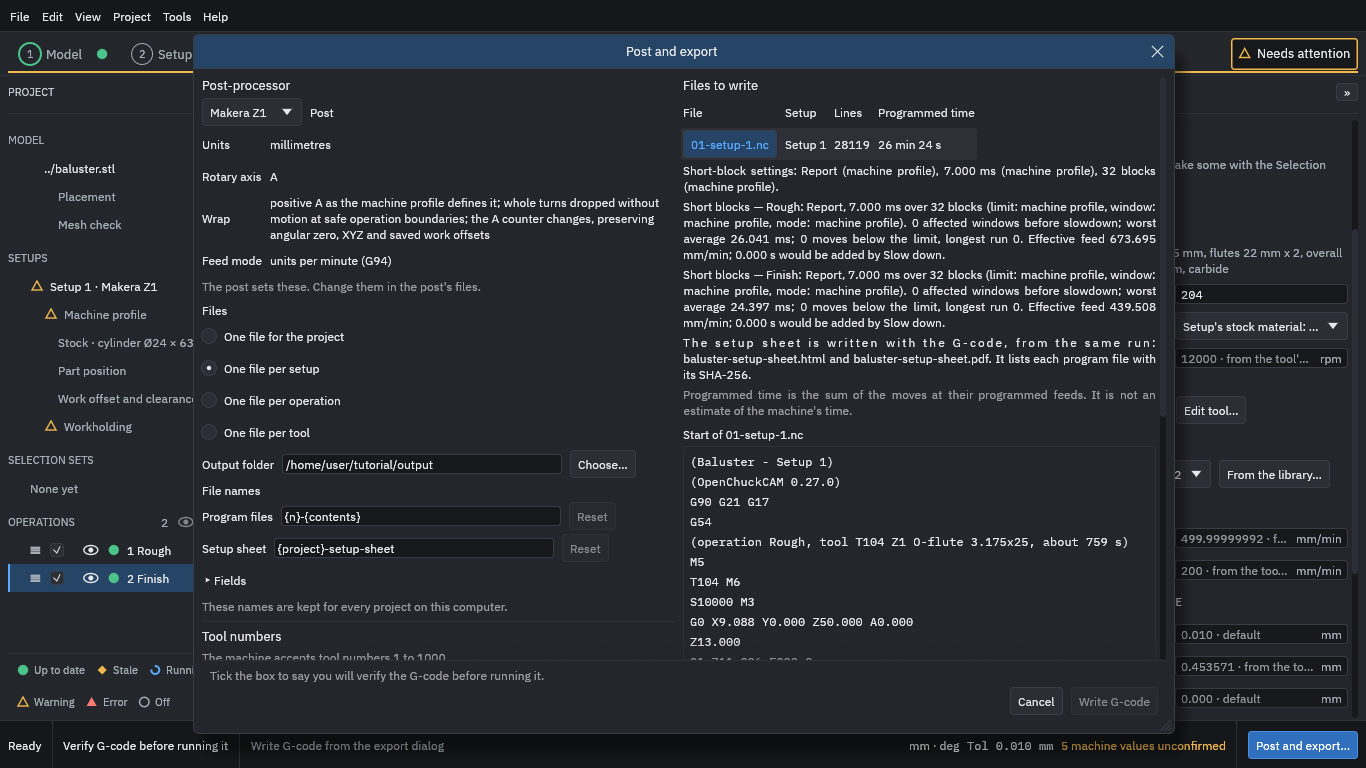
The dialog shows:
- Post-processor
- Makera Z1 writes G-code for that machine (units in millimetres, A as the rotary axis, feed in units per minute). A LinuxCNC post is also available; it is used to check the output in a simulator.
- Files
- One file for the project, per setup, per operation or per tool. Keep One file per setup here.
- Output folder
- Where the files go. Type a folder.
- File names
- The names are made from templates (
{n}-{contents}gives01-setup-1.nc). The defaults are fine. - Files to write
- The list shows the file’s lines (here 28,119) and programmed time, and the start of the program so you can read it.
- Scroll down to Checks before writing.
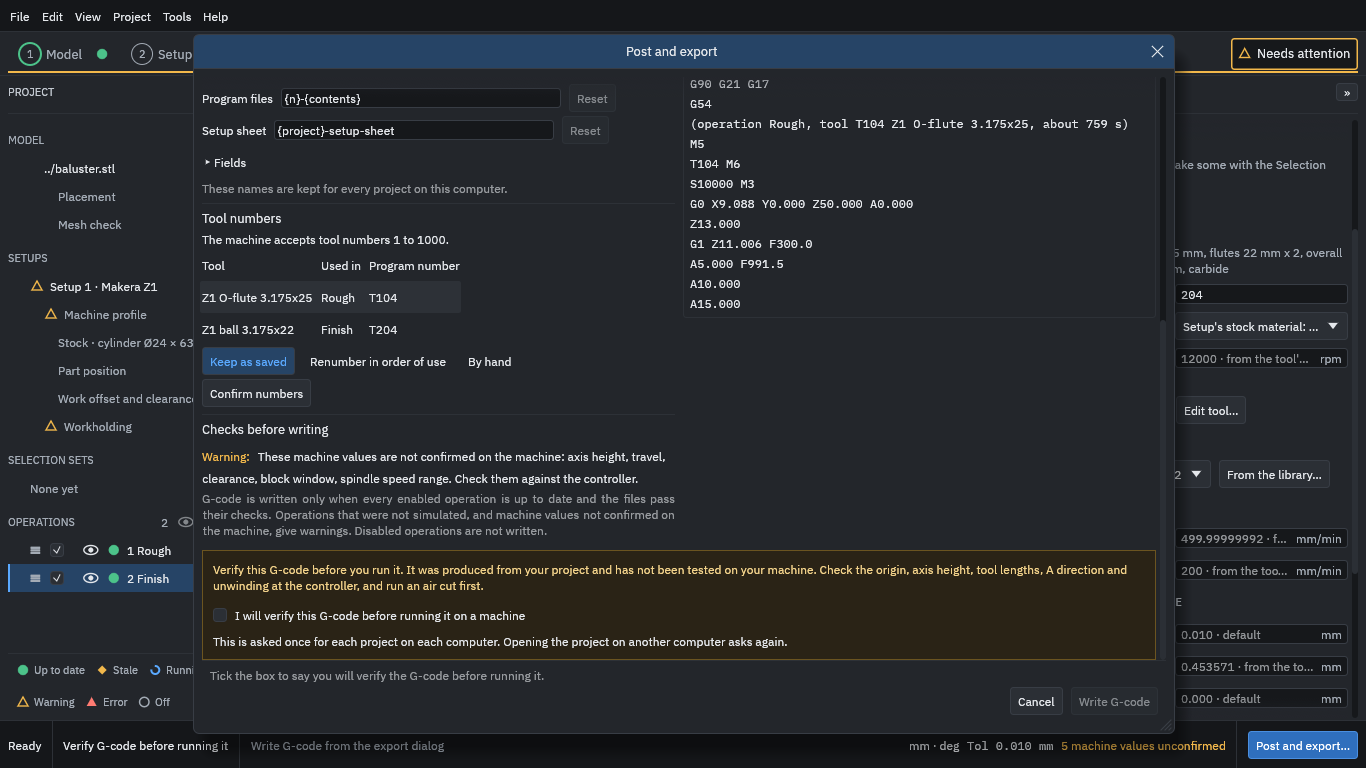
- Read the warning about the unconfirmed machine values, and the notice “Verify this G-code before you run it.”
- Tick I will verify this G-code before running it on a machine (the program asks this once per project on each computer).
- Press Write G-code.
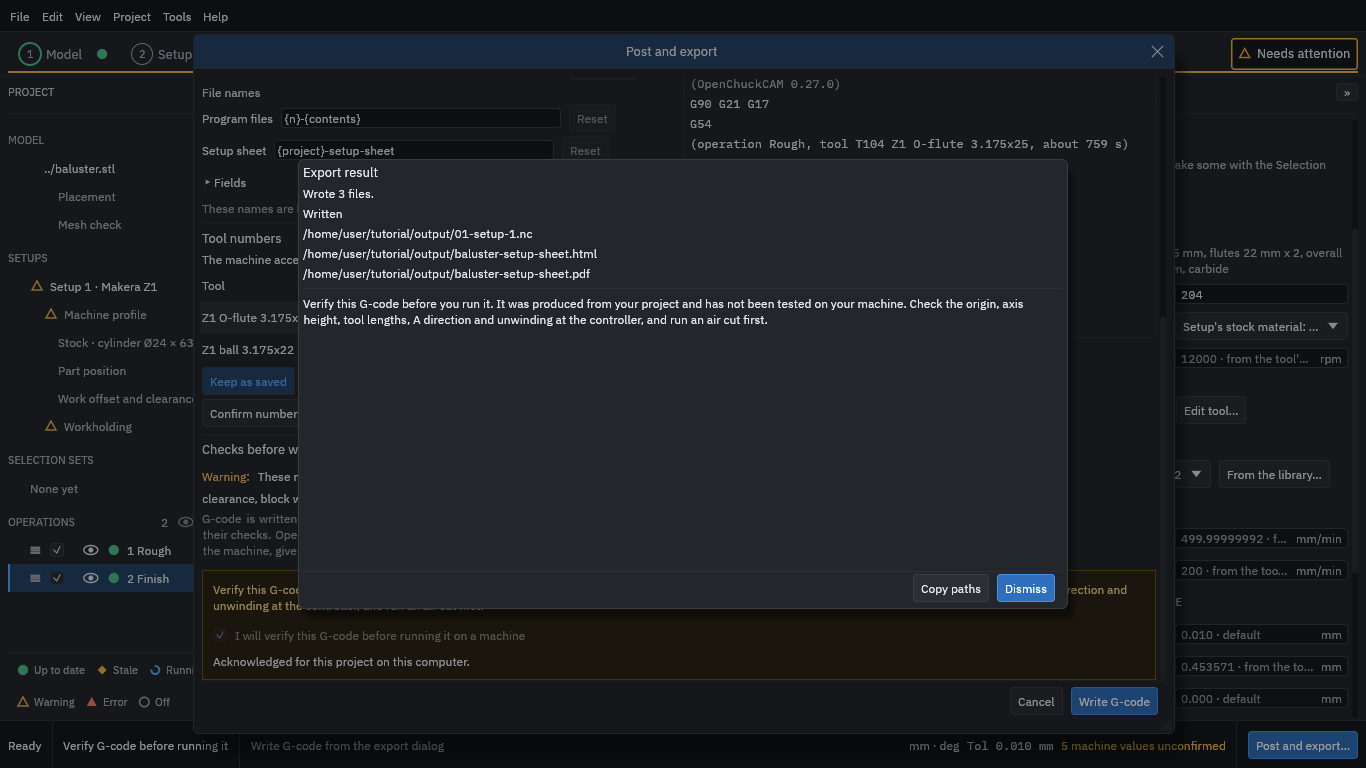
Three files are written to the output folder:
01-setup-1.nc: the G-code (about 800 KB for this job).baluster-setup-sheet.htmlandbaluster-setup-sheet.pdf: the setup sheet. It lists the project, machine, stock, held length, tools, operations with their speeds and times, each program file with its SHA-256 hash, and the notice to verify. Compare the hash of a file on the machine with the sheet to be sure it is the file the sheet describes.
Dismiss the result and save the project with File > Save.