1. Create a project
A project is a folder; the program asks for the folder it should go in and a name.
- Start the program and choose New project… (or File > New project…, Ctrl+N).
- Type or browse to a Parent folder.
- Call the project Baluster.
- Press OK.
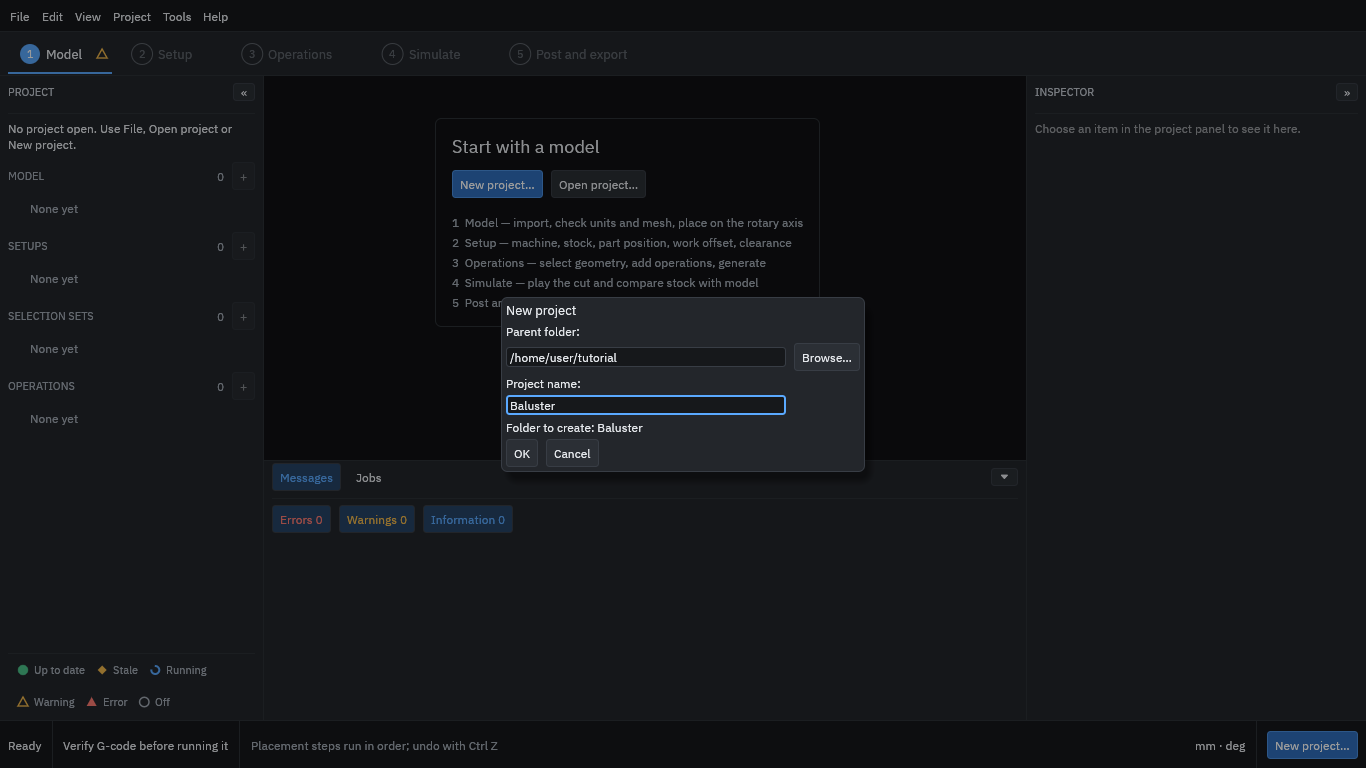
The program creates the folder and opens the empty project.
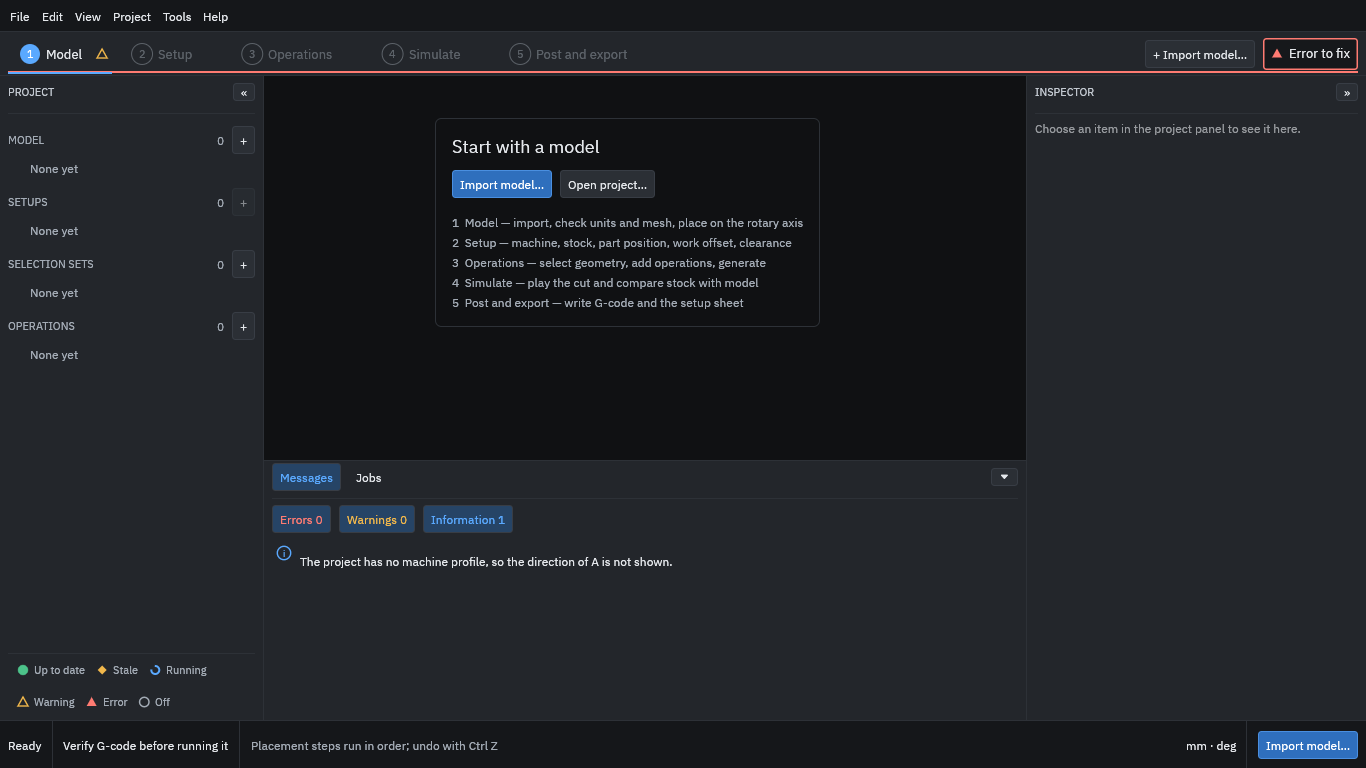
The row of steps along the top is the order you work in. The marks beside each step show whether it is ready. At this point the program notes that the project has no machine yet; you add one in step 3.
The program does not save by itself: use File > Save (Ctrl+S) as you go. Edits in a form are applied when you press Enter or leave the field.