7. Add the operations
An operation is one machining job with one tool. You will add two: a roughing operation that removes most of the material quickly, and a finishing operation that cuts the final surface. Roughing and finishing explains why there are two.
Choose + New operation. The list of strategies shows what the program can do:
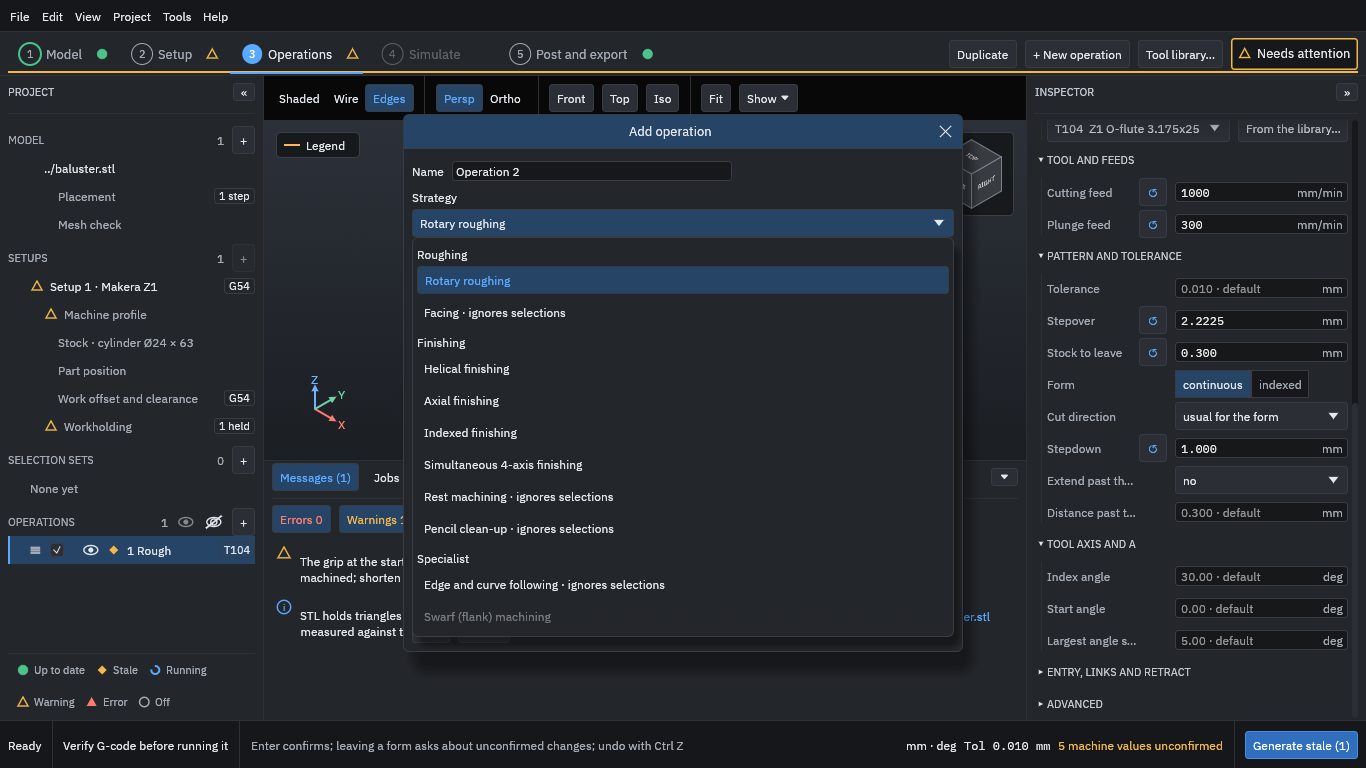
Each entry has a one-paragraph description. Swarf is greyed because it needs a STEP model.
Roughing
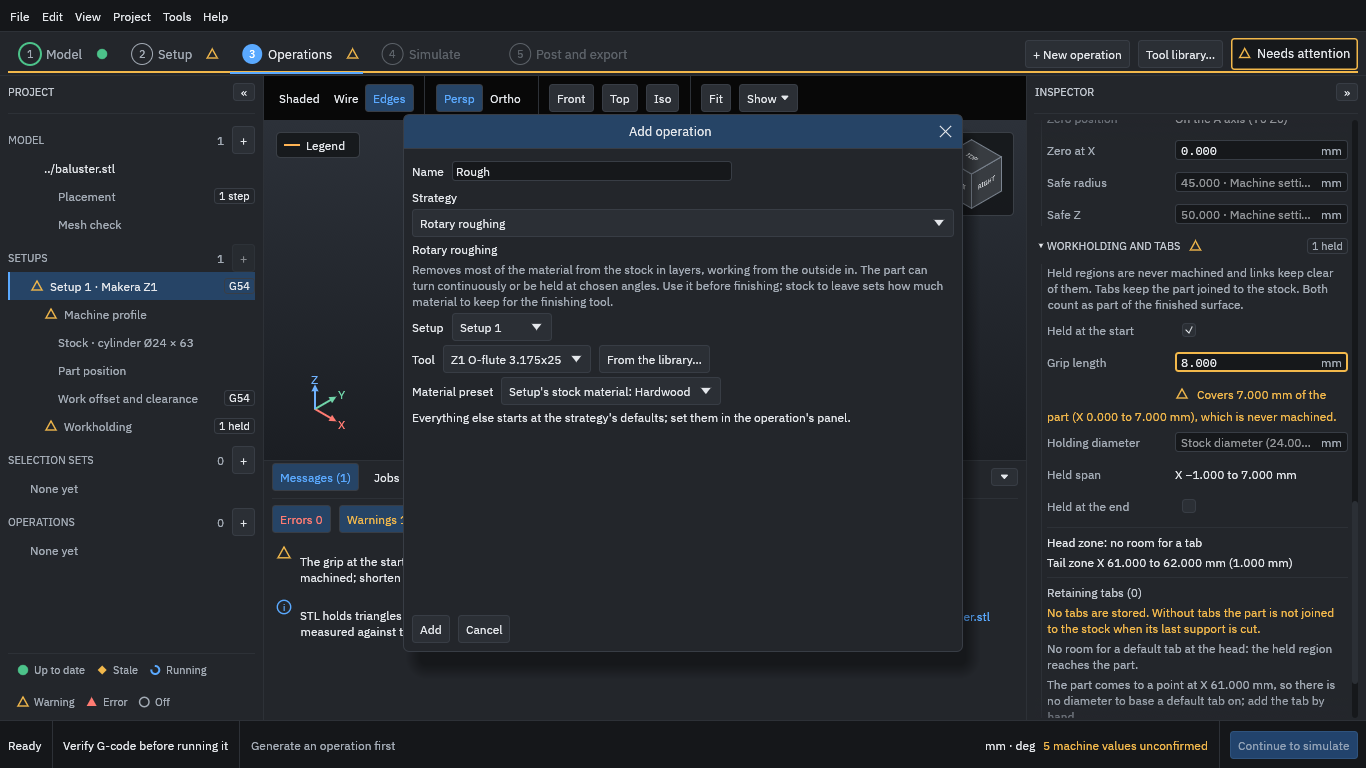
- Name the operation Rough and keep Rotary roughing as the strategy. The setup (Setup 1), the tool (Z1 O-flute 3.175x25) and the material preset (the setup’s Hardwood) are already right.
- Press Add.
- In the Inspector, set Stepdown to 1 mm. This field starts empty (“required”): the program will not guess how deep a layer should be.
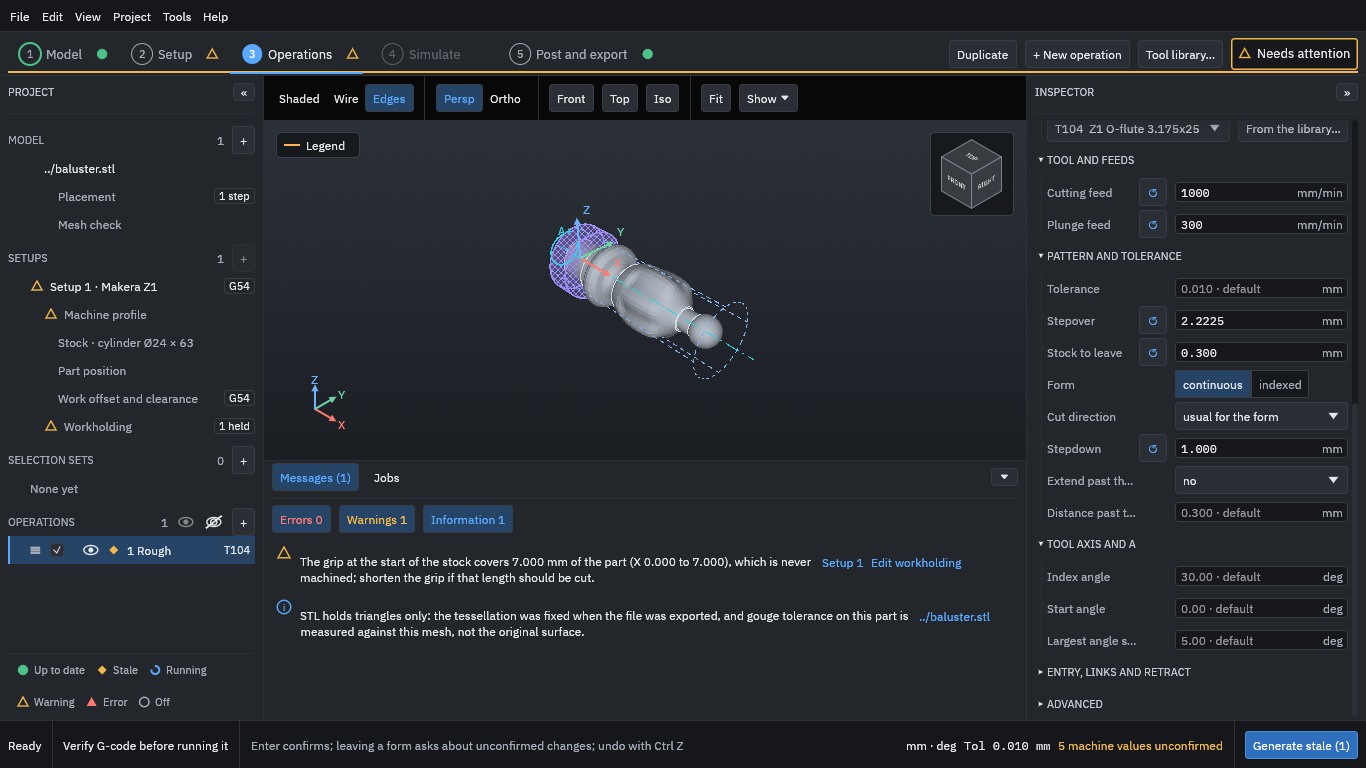
The rest comes from the tool and the strategy. Two to look at:
- Stepover 2.2225 mm is 70 % of the tool’s diameter, from the tool’s cutting data.
- Stock to leave 0.300 mm: roughing stops 0.3 mm short of the part so that the finishing tool has a little to cut.
The cutting feed shown is the programmed feed; the machine profile’s own feed limits can slow moves that turn A (the export dialog in step 10 reports the effective feed). Stepover, stepdown, scallop and stock to leave says more about these settings.
Finishing
- Choose + New operation again.
- Choose Helical finishing, name it Finish and pick the tool Z1 ball 3.175x22.
- Press Add.
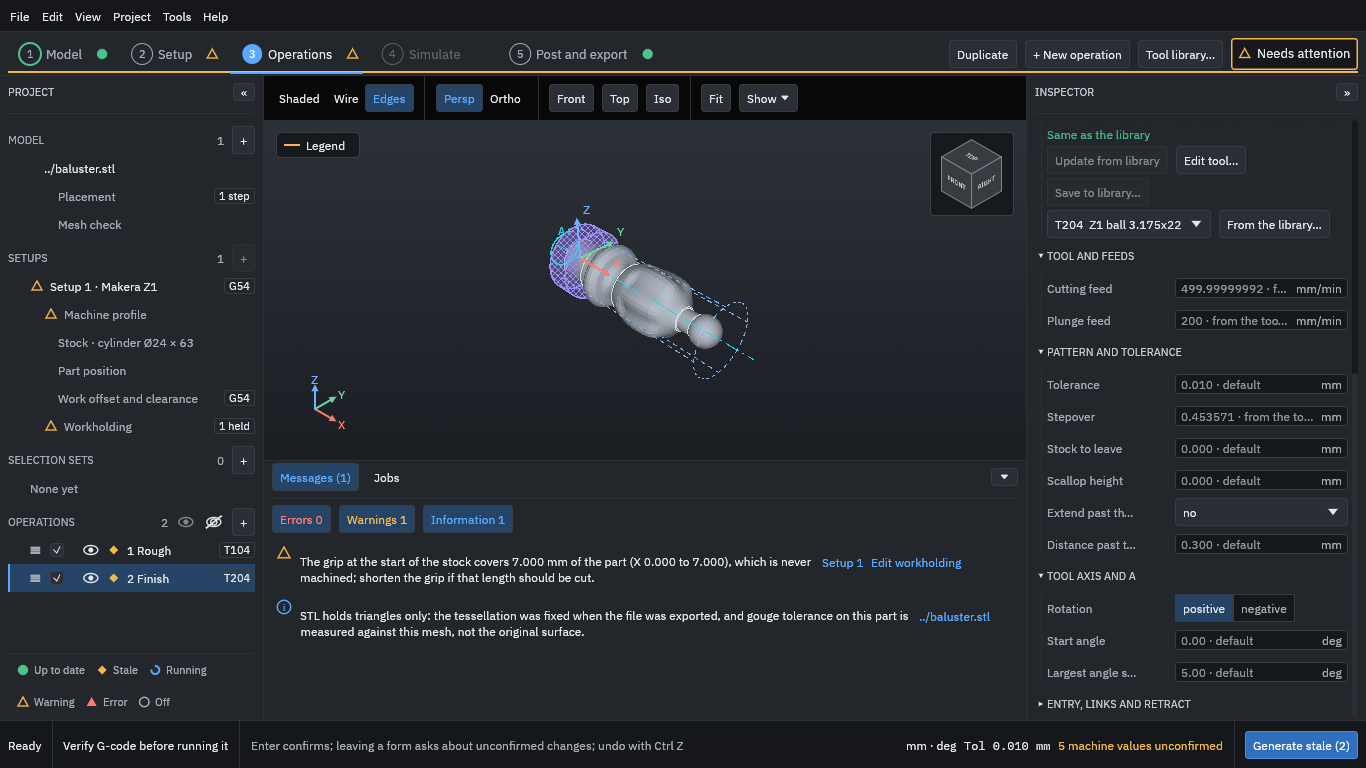
Helical finishing follows the surface in a spiral around the part as the tool moves along it. Its stock to leave is 0, so it cuts to the model. The description warns that “the tool may not reach tight inside corners”: a ball of this size cannot cut a sharper corner than its own radius.